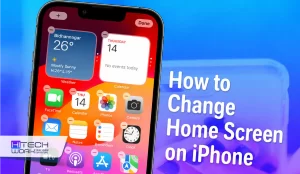
Have you ever glanced at someone’s iPhone and thought, “Why does their home screen look so aesthetic but mine is just a mess?” I mean, I swear it feels unfair sometimes. With the newest iOS updates, personalizing your device is now super easy, like really. You do not have to be a tech wizard or anything to give your phone a full makeover.
If you want to get rid of that cluttered vibe and build a screen that fits your own mood, here is a beginner-friendly way, on how to change home screen on iPhone.
How to Change Home Screen on iPhone (Different Ways)
There are several ways to tweak or adjust your interface so it looks exactly how you want it. And yeah, it is not just one thing. Here is a sort of breakdown of the different methods you can use to make it happen in practice.
Change Wallpaper
Changing your iPhone wallpaper is basically one of the easiest ways to give your phone a brand-new vibe, right away. You do it, and suddenly it feels fresher, more you, you know.
How to Change iPhone Wallpaper
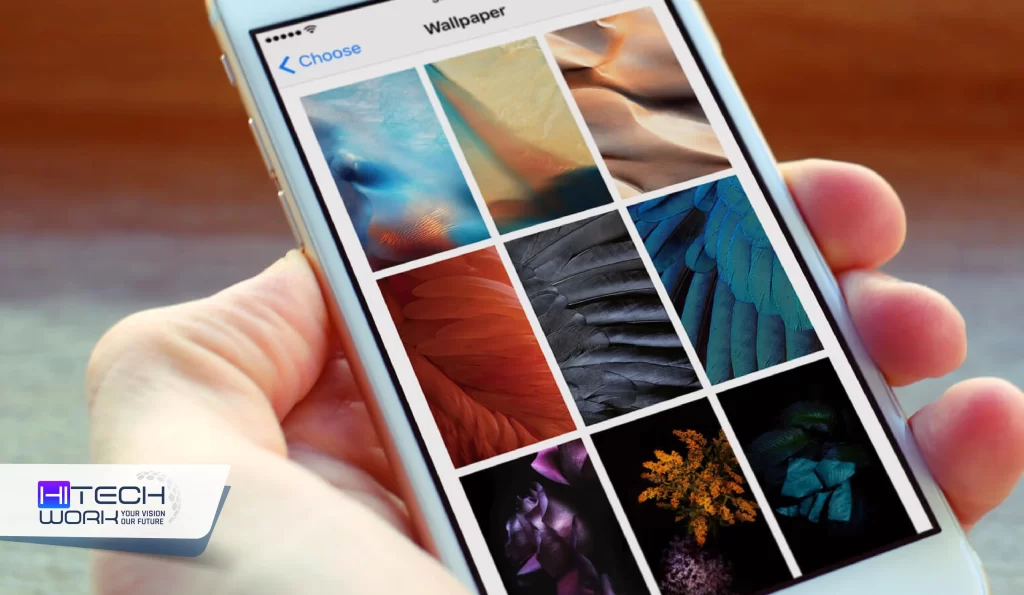
- Open the Settings app on your iPhone from the Home Screen.
- Tap Wallpaper to open the wallpaper settings, where you can manage both your Lock Screen and Home Screen wallpapers.
- Select Add New Wallpaper to start choosing a new background.
- Pick your preferred wallpaper category, such as:
- Photos
- Emoji
- Weather
- Colors
- Apple Wallpapers
- Adjust the wallpaper to your liking, then tap Done to save your changes.
You can use different wallpapers for your Lock Screen and Home Screen to give your iPhone a more personalized look. Changing your wallpaper is one of the quickest and easiest ways to completely change home screen on iPhone.
Add Widgets
Widgets are one of the more significant factors behind the stylish look of iPhone home screens. They help make the whole display feel more modern, and they also bring in some relevant details like the weather, battery status, or those little reminders. In other words, they’re not just decoration, more like a practical little layer that’s kind of always there even when you’re doing something else.
How to Add Widgets on iPhone Home Screen
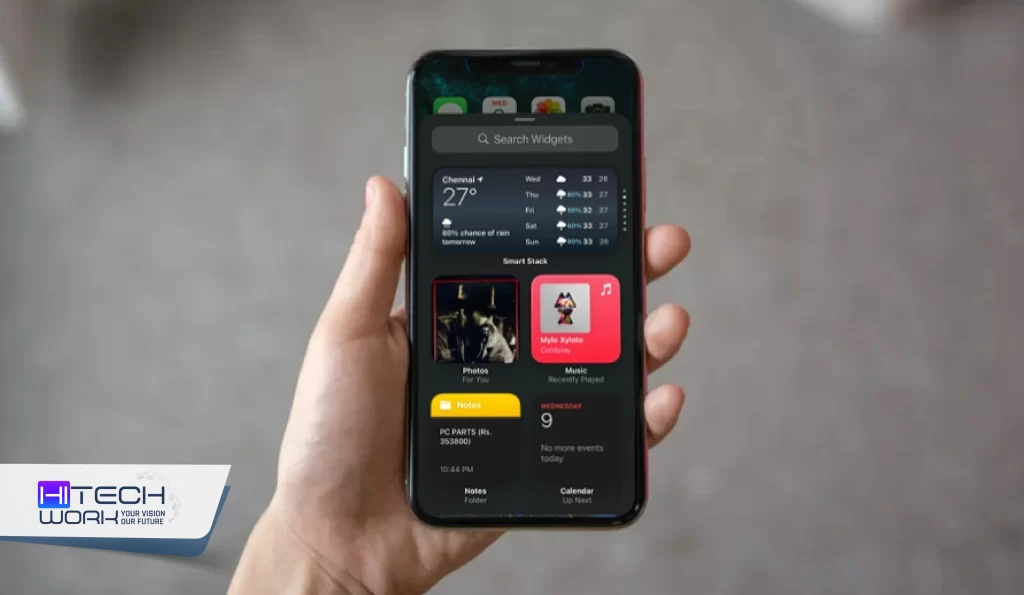
- Press down on a blank spot on your iPhone home screen, hold it there a sec
- Tap the plus button on the upper right
- Choose a widget from the list
- Figure out what size to set it to
- Hit the “Add Widget” button
Widgets can basically be shifted around on your home screen whenever you need them, as in any place that feels right. Just keep in mind, though, that your screen should not be overloaded with too many widgets.
Change the Color of Your App Icons and Widgets
You can kinda change home screen on iPhone screen by tinting your app icons and even those widgets with a certain color scheme, like it’s not even the same display anymore.
How to Change Colors App Icons and Widgets on iPhone
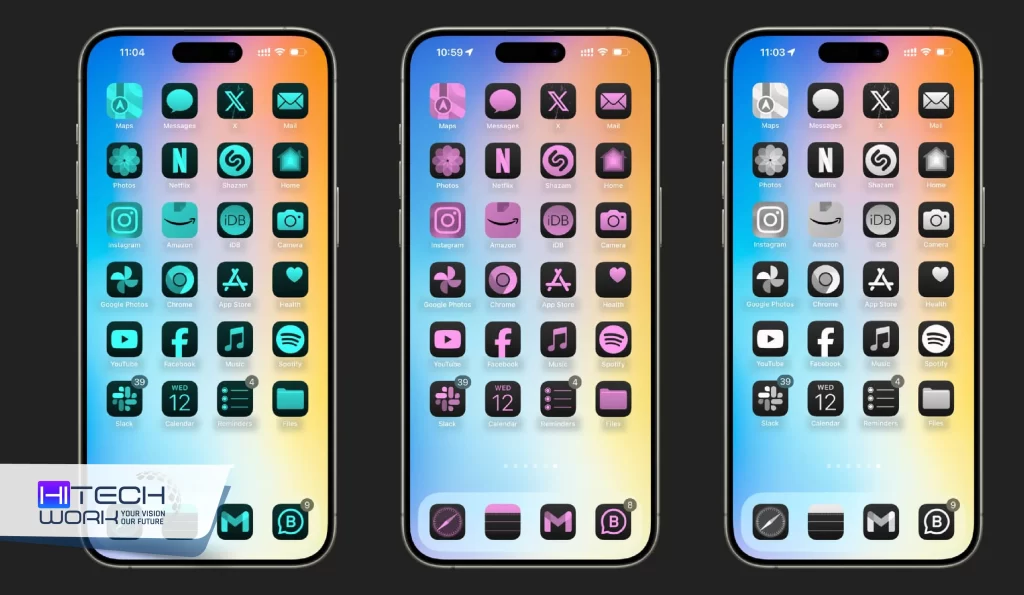
- Press and hold on any empty part of your home screen until the apps start kinda jiggling.
- Then tap the “Edit” button up in the top left; after that, choose “Customize.” (Yeah, it’s that one.)
- A little menu shows up near the bottom where you can pick Light, Dark, Automatic, or Tinted.
- Go with “Tinted” and move the sliders so you land on the exact color tone that goes with your wallpaper background.
Remove App Labels
If you’re after an ultra-clean minimal aesthetic, you can go ahead and remove the text names underneath your apps, so it’s only the icons that show.
How to Remove iPhone App Labels
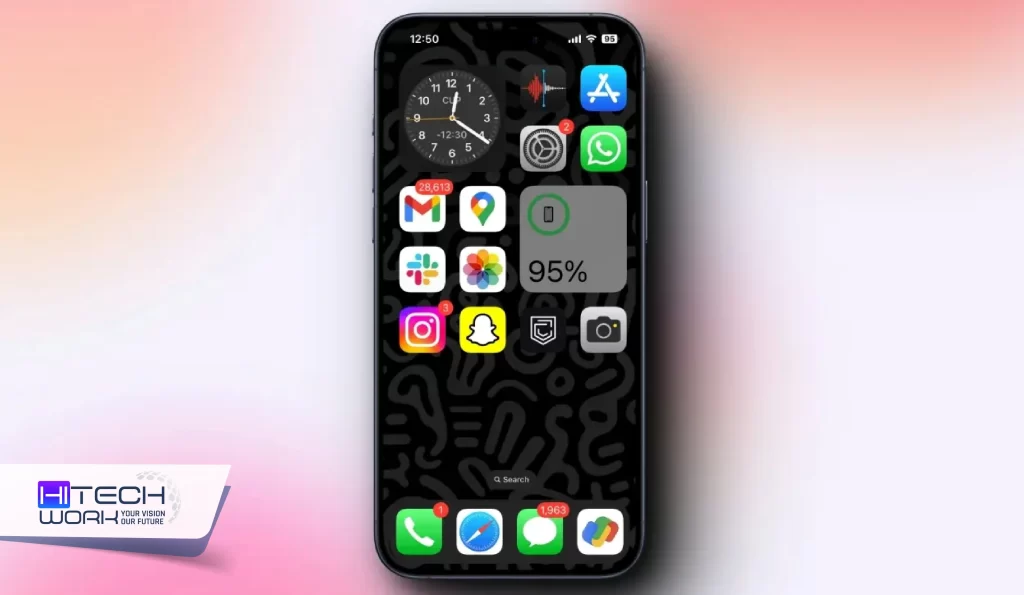
- Press and hold on a free space on your home screen until those app icons start to shake a bit.
- Then tap “Edit” that’s in the top-left corner, and tap “Customize” (kinda like you’re opening the options).
- Now, in the customization toolkit pane, change the setting from “Small” to “Large”.
- This makes the app icons a little bigger, and the text labels under them get hidden on their own.
Arrange Apps Around Your iPhone Home Screen
You are no longer forced to keep your apps strictly snapped to the top of the grid. You can place your apps and widgets anywhere on the layout, leaving empty spaces wherever you prefer.
How to Arrange Apps on iPhone Home Screen
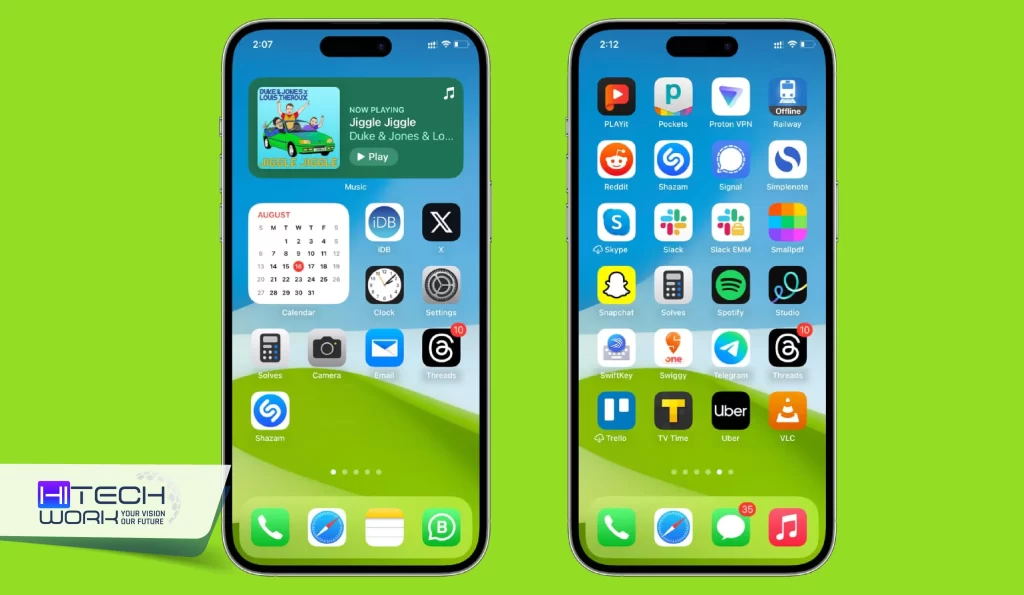
- Press and hold on any app or empty space to get into “jiggle mode”.
- Then drag the app icon or widget to your most exact preferred spot, say closer down toward the bottom, or maybe slide it along the sides of the screen.
- When you let go of the icon, it’ll drop into place, and you can leave a few empty rows or columns around, so your wallpaper design really shows off.
Using these methods, you can pull off popular themes like:
- Minimal black setups
- Neutral aesthetic layouts
- Pink or pastel kinds of looks
- Anime-inspired screens
A lot of people who search for how to change home screen on iPhone are mostly after these features, and it’s because it makes your iPhone look completely different. Like, almost like a new device.
Tips for an Aesthetic iPhone Home Screen
If you’re sort of confused about where to start, here are some popular styles that folks generally seem to enjoy anyway, even when it feels a bit messy at first
- Minimal Setup: go with plain wallpapers, little widgets, and maybe just a few apps.
- Dark Theme: choose black wallpapers, then use dark widgets too for that sleek modern vibe.
- Pinterest Style: match the icons together, keep soft colors around, and use a whole aesthetic set of widgets so the phone looks trendier, like you kinda pulled it from some place.
- Productivity Layout: put your calendar, reminders, and note widgets on the very first page, so it’s faster to grab stuff when you actually need it.
Honestly, experimenting with different themes is one of the most fun parts of learning how to change home screen on an iPhone, even if you mess around a bit at first.
FAQs
Q.1: Does changing the color of icons drain the battery faster?
Ans: No. Tinting icons does not affect battery life. However, using dark or tinted options alongside a black wallpaper can actually save battery on OLED screens.
Q.2: Will switching to “Large Icons” mess up my current layout?
Ans: It might shift things slightly. Because the icons grow larger to hide the text, a few apps at the very bottom might get pushed to the next page.
Q.3: Can I combine multiple widgets into one slot to save space?
Ans: Yes. Just drag and drop a widget on top of another widget of the same size to create a “Widget Stack” that you can swipe through.
Q.4: Does rearranging apps or hiding labels risk deleting my app data?
Ans: Not at all. Changing the visual layout or moving icons around will never affect your app data, accounts, or settings.
Q.5: Can I quickly undo all changes and get my original layout back?
Ans: Yes. Go to Settings > General > Transfer or Reset iPhone > Reset and select Reset Home Screen Layout to restore the factory look.