If you just bought an Alexa device and don’t know where to start, don’t worry — you’re not alone! Many people face the same question: how to connect Alexa to Wi-Fi?
It may sound technical, but it’s actually very simple. Alexa is designed to be user-friendly, and once it’s connected to Wi-Fi, it can do amazing things, like play your favorite music, tell you the weather, control lights, and even answer your random questions.
In this guide, we’ll explain what Alexa is, how it works, and the easiest way to connect Alexa to Wi-Fi step-by-step. Let’s get started.
What is Alexa?
Alexa is Amazon’s cloud-based voice assistant that works through smart devices like the Echo Dot, Echo Show, and other Alexa-enabled gadgets. Using just your voice, you can ask Alexa to play music, set reminders, check the weather, control smart lights, or even order products online.
Behind the scenes, Alexa connects to the internet via Wi-Fi. When you speak a command, your voice is sent to Amazon’s cloud servers, processed instantly, and Alexa replies with the requested information or action. Without Wi-Fi, Alexa cannot communicate with the cloud and becomes almost useless. That’s why knowing how to connect Alexa to Wi-Fi is so important.
How Alexa Works
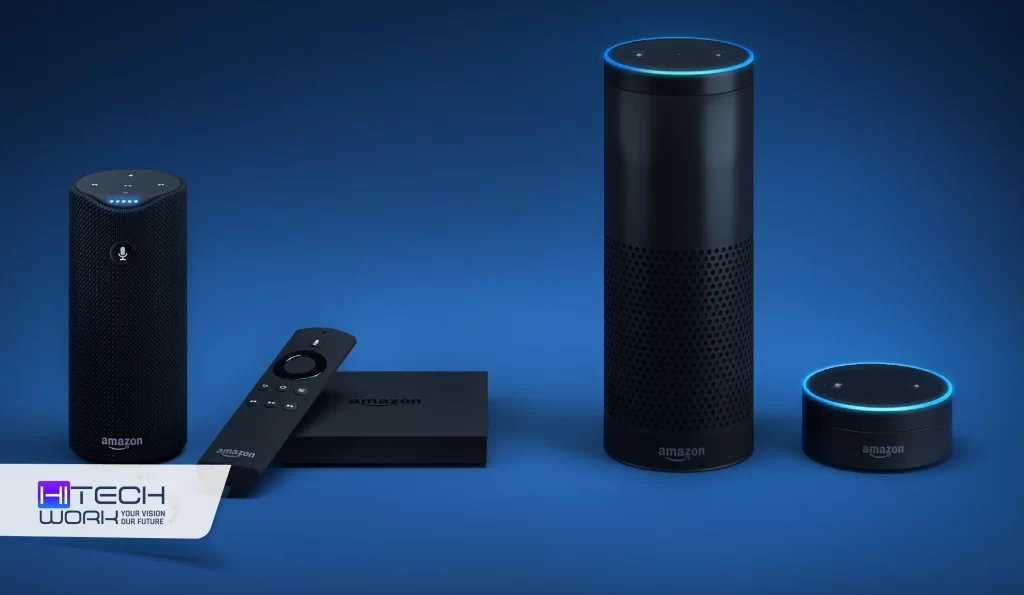
To better understand why Wi-Fi is crucial, let’s briefly look at how Alexa works:
- Wake Word Activation – When you say “Alexa,” the device wakes up and listens to your request.
- Cloud Processing – Your voice command is sent to Amazon’s servers over Wi-Fi.
- Response & Action – Alexa interprets the request and either responds with information or controls a smart device.
This seamless process happens in seconds. But only if Alexa has a proper Wi-Fi connection.
How to Connect Alexa to Wi-Fi in 6 Steps
1. Download the Alexa App
First, download the Alexa app on your smartphone or tablet from the App Store (iOS) or Google Play Store (Android). The app is essential for setting up and managing your Alexa device.
2. Plug in Your Alexa Device
Connect your Echo or other Alexa-enabled device to a power outlet. You’ll notice a light ring (usually orange during setup) that signals your device is ready to connect.
3. Open the Alexa App
Launch the Alexa app and sign in using your Amazon account. If you don’t have one, you’ll need to create it, as Alexa works only with Amazon credentials.
4. Add a New Device
In the app, tap Devices at the bottom right corner, then select Add Device. Choose the type of Alexa device you’re setting up (Echo, Echo Dot, Echo Show, etc.).
5. Connect to Wi-Fi
The app will guide you through available Wi-Fi networks. Select your Wi-Fi network, enter the password, and tap Connect. Your Alexa device will link to your Wi-Fi within seconds.
6. Confirmation
Once connected, the Alexa app will notify you, and the light ring on your device will change to blue. You can now start talking to Alexa and testing commands.
That’s the basic process of how to connect Alexa to Wi-Fi. Simple, right?
How to Reconnect Alexa to Wi-Fi
Sometimes, Alexa may lose its internet connection due to router changes, new Wi-Fi passwords, or network issues. In that case, here’s how to reconnect Alexa to Wi-Fi:
- Open the Alexa app.
- Go to Devices > Echo & Alexa.
- Select your device.
- Tap Change under the Wi-Fi settings.
- Choose your new network and enter the password.
This process ensures your Alexa stays online without needing a full reset.
Why is Alexa not Connecting to Wi-Fi?
Even though the setup is straightforward, you might face some issues. Here’s how to troubleshoot them:
1. Wrong Password
If Alexa fails to connect, double-check your Wi-Fi password. Many failed attempts happen because of incorrect credentials.
2. Weak Wi-Fi Signal
Alexa needs a stable internet connection. Place your device closer to the router if the signal is weak.
3. Router Compatibility
Alexa supports 2.4 GHz and 5 GHz networks, but some older routers may cause issues. Restart your router and try again.
4. Outdated Alexa App
Make sure your Alexa app is updated to the latest version to avoid glitches during setup.
5. Factory Reset
If nothing works, reset your Alexa device by holding the Action button (circle button) for about 20 seconds until the light ring turns orange. Then, try connecting again.
Why Wi-Fi Connection Matters for Alexa
Alexa without Wi-Fi is like a phone without a SIM card. It loses its purpose. Whether you want to stream music, control smart home gadgets, or ask questions, all these functions depend on internet connectivity.
That’s why learning how to connect Alexa to Wi-Fi is one of the first and most important steps in setting up your device.
FAQs
Q1: Can Alexa work without Wi-Fi?
Ans: No, Alexa needs Wi-Fi to function. Without internet access, it cannot process commands or respond.
Q2: How do I know if Alexa is connected to Wi-Fi?
Ans: You can check in the Alexa app under device settings, or simply ask, “Alexa, are you connected to Wi-Fi?”
Q3: Can I connect Alexa to a mobile hotspot?
Ans: Yes, you can connect Alexa to a mobile hotspot, but keep in mind it may consume a lot of mobile data.
Q4: Why is my Alexa not connecting to Wi-Fi?
Ans: It could be due to an incorrect password, weak signal, or router issues. Restart both your router and Alexa before trying again.
Q5: How do I change Wi-Fi on Alexa?
Ans: Go to the Alexa app → Devices → Select your Echo → Wi-Fi settings → Change network.
Conclusion
Amazon Alexa makes life easier by answering questions and controlling your smart home, but it only works with Wi-Fi. Connecting is simple: download the Alexa app, power on your device, and follow the setup steps. If it doesn’t connect, check your Wi-Fi, update the app, or move closer to the router. Once online, Alexa brings convenience and entertainment right to your voice.