Your phone has almost everything: your photos, messages, games, and even your bank info. But what if someone gets access to your Apple account? Scary, right? That’s why keeping it secure is a must.
If you heard about a data leak or just keep getting security reminders, it’s time to know how to change Apple ID password. The good news? You don’t need to be a tech whiz or visit an Apple Store. You can do it right now, from your couch, in just a few minutes.
How to Change Apple ID Password on iPhone or iPad
Here is the step-by-step guide on how to change Apple ID password using your iPhone or iPad:
- Look for the icon that looks like a grey set of gears. Tap on it to open.
- At the very top of the screen, you will see your name and your photo. Tap on that big banner.
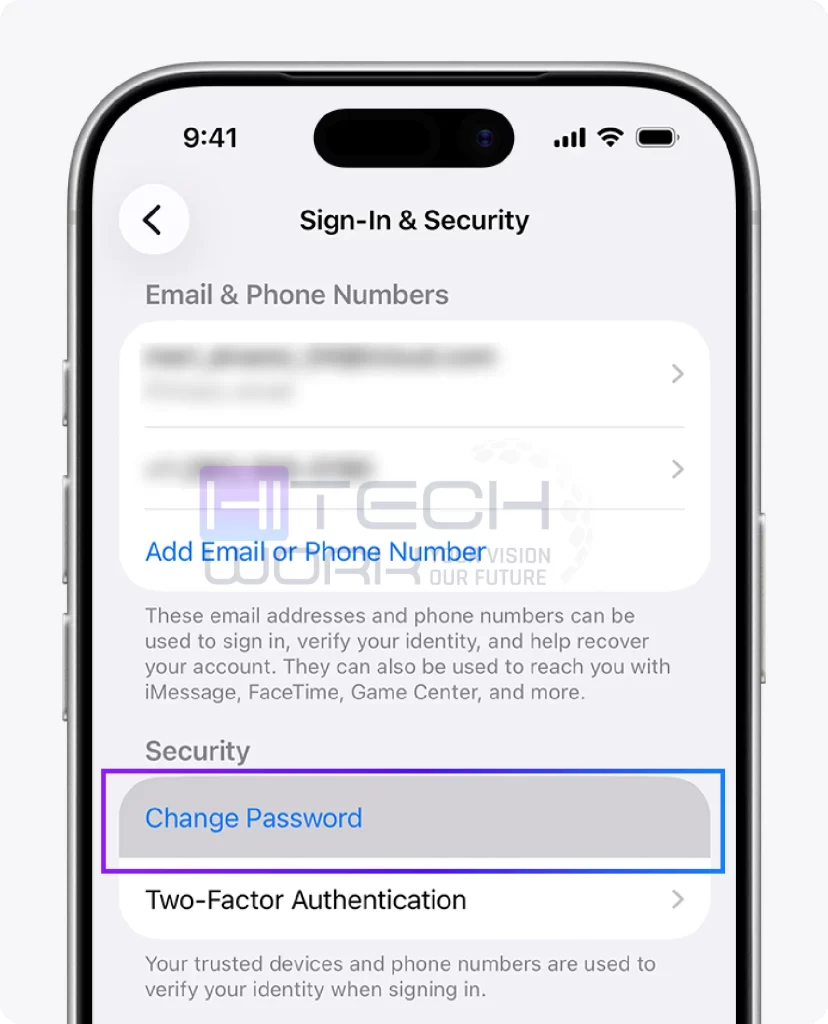
- You will see a list of options. Look for the one that says “Sign-In & Security.” It is usually near the top. Tap it.
- Click on the button that says “Change Password.”
- Your phone will ask for the code you use to unlock the screen. This proves you are the owner of the phone.
- Now, type in your new secret code. You will have to type it two times to make sure you didn’t make a spelling mistake.
- Click on the Change button in the corner, and you are done!
After you do this, your phone might ask if you want to sign out of other devices. If you think someone stole your old password, say “Yes.” If you just changed it for routine safety, you can say “No.”
How to Change Apple ID Password on a Mac Computer
Here is how to change Apple ID password on a MacBook or iMac:
- Click the little Apple logo in the top-left corner of your screen.
- In newer Macs, it is called “System Settings.” On older ones, it is “System Preferences.”
- Click onyour name, you will see it at the top of the sidebar or window.
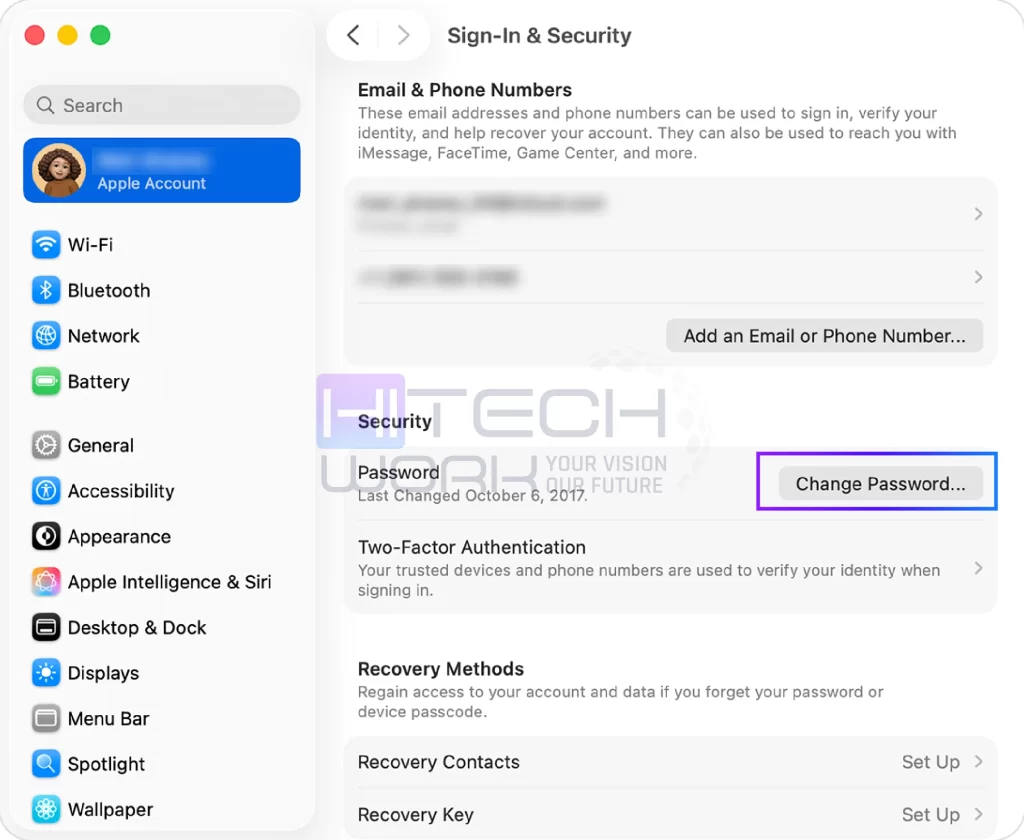
- Then click on the Sign-In & Security option.
- A box will pop up here; click Change Password.
- You will need to type the password you use to log into your computer when you turn it on.
- Type your new password and verify it.
Using a physical keyboard is great because you are less likely to make a typo compared to tapping on a glass screen.
How to Change Apple ID Password on a Web Browser
What if you don’t have an Apple device handy? Maybe you switched to an Android phone. But still keep your Apple ID for Apple TV+ or iTunes music. You might be wondering how to change Apple ID password without an iPhone.
You can use any internet browser, like Chrome, Firefox, or Edge.
- Go to the address bar and type appleid.apple.com.
- Enter your email address and your current password.
- If you have Two-Factor Authentication turned on, Apple will send a 6-digit code to your phone number. You must enter this code to get in.
- Look for this section on the dashboard.
- Click on “Password.”
- You will need to type your old password once, and then your new password twice.
You can do this from a library computer, a friend’s phone, or your work PC. Just remember to sign out when you are finished!
What to do if I forgot my Apple ID Password and Email?
This is a scary situation. You try to download an app, and your mind goes blank. You cannot remember the code. The methods above won’t work because they usually ask for your old password or a trusted device passcode.
Here is how to reset Apple ID password by email:
- Go to iforgot.apple.com.
- Type in your email address.
- You must type the phone number linked to your account.
Look for Notifications: Apple will try to send a message to any other Apple devices you own. If you have an old iPad or a Mac, a notification will pop up on that screen. You simply tap “Allow,” and then you can reset the password right there.
But what if you have no Apple devices? Maybe you lost your phone and forgot the code at the same time. In this case, you will have to click “I don’t have access to any of your devices” on the website. This starts a process called “Account Recovery.”
Warning: Account Recovery is not instant. It is a waiting game. Apple might make you wait a few days before it lets you reset your details. They do this to make sure you are not a hacker trying to steal the account. It is slow, but it is designed to keep you safe.
What Happens After You Change It?
Once you successfully finish the steps on how to change your Apple ID password, your digital life might get a little bumpy for a few minutes. This is normal.
Because you changed the “key” to your house, all your devices that are currently inside need to check in again.
- Your iPhone, iPad, and Mac might suddenly pop up a box asking for the new password. Just type it in.
- iMessage and FaceTime might stop working for a moment. If they do, just go to Settings, turn them off, and turn them back on.
- If you use the Mail app, it might say “Cannot Get Mail.” When you tap that error, it will ask for the new login.
Do not be scared if you see these warnings. It actually means the system is working correctly. It is kicking out anyone who might have the old password.
Troubleshooting: When Things Go Wrong
Sometimes, technology fails. You might be following this guide on how to change Apple ID password perfectly, but an error message stops you. Let’s look at how to fix common problems.
Error: “Verification Failed”
This usually happens because of a bad internet connection.
- Fix: If you are on Wi-Fi, switch to mobile data (4G/5G). If you are on mobile data, try connecting to Wi-Fi. Then try again.
Error: “Password cannot be used.”
Apple remembers your history. You cannot use a password that you have used in the last year.
- Fix: You have to get creative and pick something brand new.
Error: “Server Unavailable”
Sometimes Apple’s own computers are down for maintenance.
- Fix: Wait about an hour and try the steps again
Why Your Password Matters So Much
Think of your Apple ID as the front door to your digital house. If you leave the key under the mat (or use a weak password like “password123”), anyone can walk in. They can see where you are, read your emails, or buy expensive apps with your credit card.
Many people search for how to change Apple ID password only after something bad happens. We want you to be ahead of the game. Security experts say you should change your “keys” every few months. It keeps the bad guys guessing. If you use the same password for Netflix, Facebook, and Apple, you are taking a big risk. If one gets hacked, they all get hacked.
FAQs
How often should I change my Apple ID password?
There is no set rule, but many experts say every 3 to 6 months is a good idea. However, if you have a very strong, unique password (one you don’t use anywhere else), you don’t need to change it as often unless you suspect a hack.
Can I reuse an old password?
No, Apple usually prevents you from using a password you have used recently.
Will changing my password delete my photos?
No changing the password does not delete any of your data.
What is the difference between an Apple ID password and iPhone passcode?
Your iPhone passcode is the 4 or 6 numbers you type to unlock your phone screen. Your Apple ID password is the complex login for your online account (iCloud, App Store). They are two different things.
Why does Apple keep asking me to verify my phone number?
This is part of Two-Factor Authentication. It ensures that you are the real owner of the account.
Does changing my Apple ID password change my iCloud password?
Yes. When you change your Apple ID password automatically changes your iCloud password because they are the same account and use the same password.
Where can I see my Apple ID password?
You can see your Apple ID password in the Passwords app on your iPhone or Mac, or by checking your web browser’s password manager.