Are you tired of seeing cat videos when you’re into fashion? Or reels about workouts when you’re all about food? So, if your feed feels off, it might be time to learn how to reset Instagram algorithm because Instagram is not getting your vibe.
However, Instagram’s algorithm learns from your activity, like what you watch, like, comment on, and save. So, if you’ve ever started to watch random content, the platform probably thinks that’s what you’re into now.
But with a few simple tweaks and changes in your behavior, you can teach the algorithm what you want to see now and improve your overall Instagram experience.
The Instagram Algorithm
The Instagram Algorithm is basically a system that is designed to control which content will show in your feed. So, Instagram analyzes your activity and behavior to show you the relevant suggestions, ads, reels, and explore content.
For instance, if you search for Digital marketing more frequently and click on a related post, the Instagram algorithm organizes this term as relevant to you. And Instagram suggests accounts, posts, and reels related to digital marketing.
How to Reset Instagram Algorithm
The resetting Instagram algorithm feature was rolled out globally in 2024, and since then, it has been gradually released to users. The resetting features let you reset Instagram algorithm and its suggestions in Explore, Reels, and the insta feed. If you get your access and are ready for that fresh start, follow these steps.
- Click on your Insta profile picture to open your profile page.
- Tap the three-bar icon you will see on the top right side.
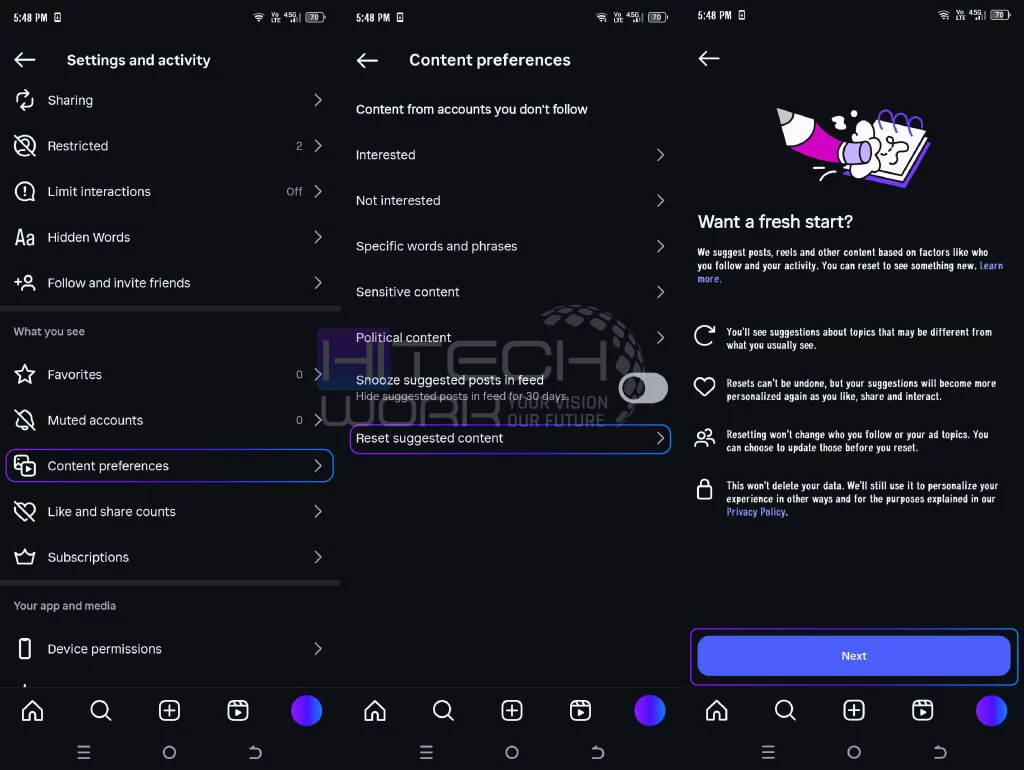
- Scroll down to What you see section and head to the Content preferences option.
- Here, click on the reset suggested content option.
- Now, follow the on-screen instructions and tap the Next button.
Tip: If you don’t want a full Instagram reset or you want to remove certain accounts, then at this point you can select these topics. To do that, simply head to the Ad Topics section > special topics and select the topics you want to remove.
- Click on the Reset suggested content option to confirm.
Things to Consider Before Resetting the Instagram Algorithm
You must keep in mind that:
- Once you reset, you can’t undo it, so make sure before you tap.
- After resetting, you might see content that is not exactly aligned with your interests.
- Instagram takes time to learn your likes again after resetting, so new recommendations might feel off at first.
So, think twice before resetting; you could lose the Instagram vibe you love.
What Happens After You Reset Instagram Algorithm?
When you reset Instagram algorithm, you will get back to the main feed, and you’ll see a small notification confirming that your suggested content has been reset. However, it does not mean that your insta feed will be empty.
Once you engage, like, and share content, your Instagram feed will quickly transform your recommendations that match your vibe. But keep in mind that some things remain unchanged by the reset.
- Account you follow (if you manually unfollow accounts during the review process).
- Ads you see
- Your posts, stories, and messages
Want to Change Your Insta Experience? Try These Tricks
Don’t want to reset Instagram algorithm? If you just want a little shake-up on your explore page, then try these hacks and take control of your Insta experience.
Turn on Snooze Suggested Posts
- Click on your Insta profile picture to open your profile page.
- Tap the three-bar icon you will see on the top right side.
- Scroll down to What you see section and head to the Content preferences option.
- Here, turn on the Hide suggested posts in feed for 30 days toggle.
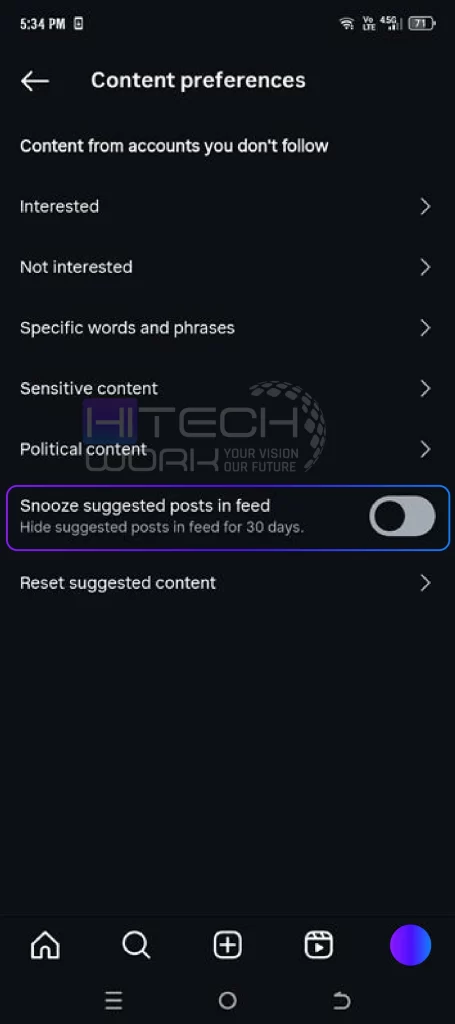
Now, Instagram suggestions will temporarily hide from your feed.
Turn off Account Suggestion Notification
- Click on your Insta profile picture to open your profile page.
- Tap the three-bar icon you will see on the top right side.
- Tap on the notifications option that you will see under the How you use Instagram section.
- Click on the “Following and followers’ option.
- Here, turn on the Account suggestions toggle.
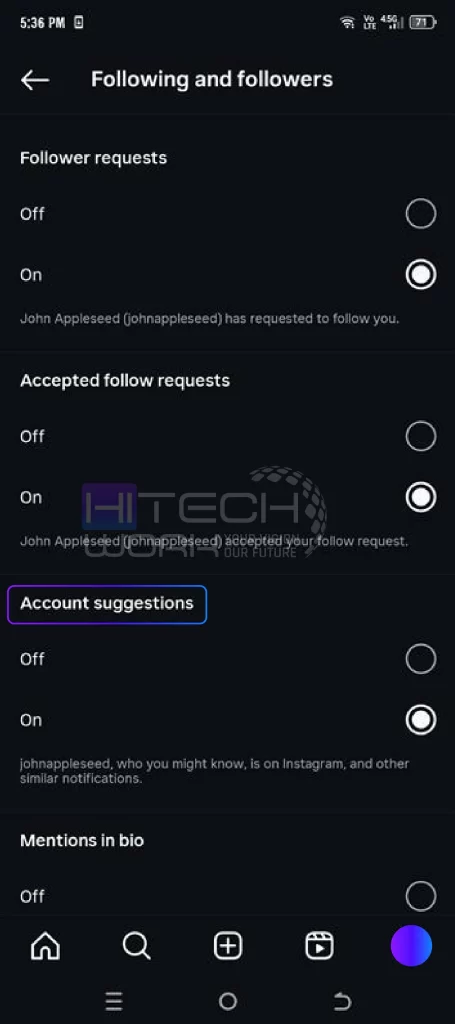
After that, you will receive notifications for account suggestions that bother you.
Turn Off Individual Post Suggestions
- Scroll through your insta feed till you find a suggested post that you don’t want to see.
- Tap the three vertical dots icon you will at the top right of the suggested post.
- Click on the Not Interested option from the pop-up menu.
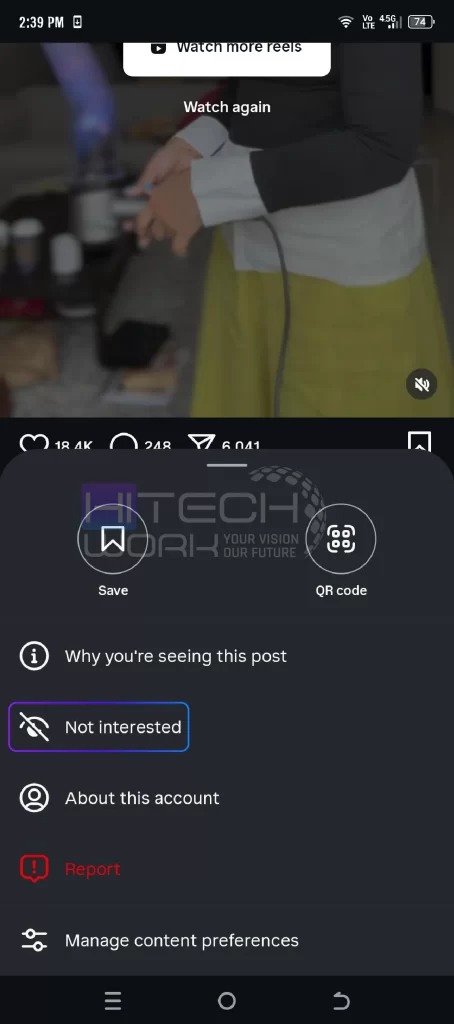
Now, Instagram will not suggest any posts from that account.
Turn Off Suggested Ads
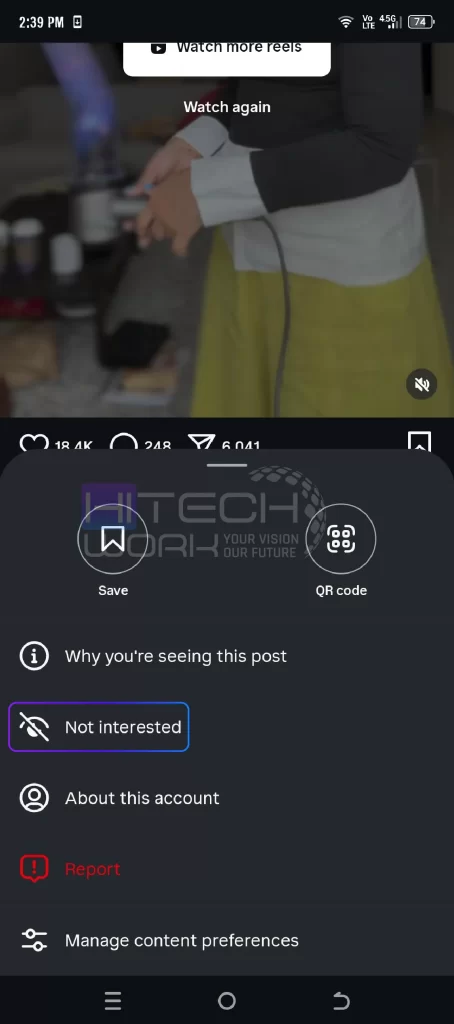
- Scroll through your insta feed till you find an ad that you don’t want to see.
- Tap the three dots icon you will at the top right of the ad.
- Click on the Not Interested option from the pop-up menu.
Clear Instagram Cache
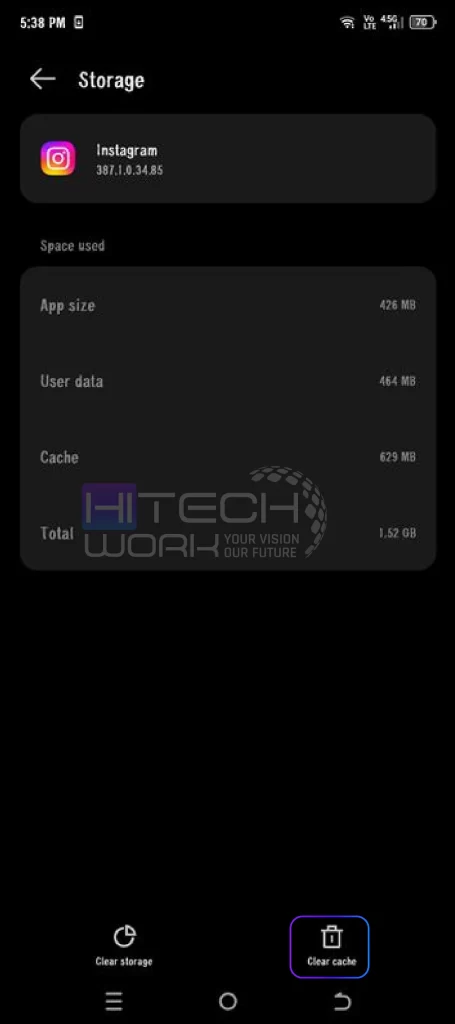
Instagram stores your search history and activity in a hidden storage called the cache. However, over time, it can clutter your insta feed. So, you must clear the cache, as it does not just speed up your phone; it also resets Instagram algorithm activity data. To clear Instagram cache:
- Head to your phone’s settings.
- Click on the apps section, here select Instagram.
- Then tap on the storage option and just click clear cache.
Mute Instagram Users
Instagram lets you mute a particular account, messages, notifications, posts, stories, and notes. By doing this, you declutter your feed without causing any awkwardness of unfollowing or blocking them. It puts you in full control of what shows up on your insta and focuses on the content you like.
FAQs
How do I reset my activity on Instagram?
You can’t completely “reset” your Instagram activity, but you can manage it by following these steps:
Go to your profile, tap the three lines (≡), select “Your Activity,” and from there, you can review and delete things like your likes, comments, search history, and interactions to clean things up.
How to clear recent activity on Instagram?
Follow the steps below to clear things like your recent searches:
- Go to your profile
- Tap the three lines (≡) and select “Your Activity”
- Now tap on “Recent Searches” and click the “Clear All” option.
Q: Why is my IG feed all suggested posts?
If your feed is full of suggested posts, it’s because the algorithm thinks you’ll like them based on what you’ve viewed, liked, or searched. You can temporarily snooze them by tapping the three dots on a post and selecting “Not Interested” or “Snooze suggested posts”.
Q: How to clear Instagram history?
Follow the 3 easy steps to clear your search history:
- Go to your profile, click on the three lines (≡)
- Select “Your Activity”, find the “Recent Searches”
- And tap on Clear All to clear your Instagram history
Q: What happened to the Instagram algorithm?
Instagram’s algorithm has shifted a lot lately! It now focuses more on engagement, relevance, and time spent on content. You’ll notice more suggested posts, Reels, and less chronological content. It’s showing you what it thinks you’ll interact with most, not just who you follow.