Coding could be hard sometimes, but what if you have a super-intelligent partner to work with? Yes, you heard it right; meet Cursor AI, the AI code editor tool to make your programming journey faster, smoother, and smarter.
But before assuming it to become your team partner, come with us and explore its features and workings and see how you could benefit from this AI-powered code editor.
What is Cursor AI?
Cursor AI is an AI-powered code editor that makes software development easier. It was launched in 2023 by Anysphere Inc. This code editor is a branch of Visual Studio Code (VS Code) that uses LLM and AI-powered integrated development environments including:
- Cursor-small
- Google’s Gemini 2.5
- Mistral & Llama
- xAI’s Grok 3 Beta and Grok 3 Mini
- DeepSeek V3 / V3.1 / R1
- Claude Models: Claude 3.7 Sonnet, Claude 4 Sonnet Claude-3.5-sonnet & Claude-3-opus
- OpenAI’s GPT Models: GPT-4o, GPT-4o-mini, GPT-3.5-turbo, & GPT-4-turbo-2024-04-09
These inbuilt AI Software help developers understand, write, and refactor code more efficiently with the advanced AI features.
Cursor AI Code Editor Features
Cursor uses VS Code (Visual Studio Code) developments to integrate AI features like code generation and chatbots for queries about your codebase. You will get these features in Cursor.
Tab
The Tab feature of the Cursor is powered by proprietary models. It suggests the next edit across lines and takes into account your recent changes. In tab features, you will get:
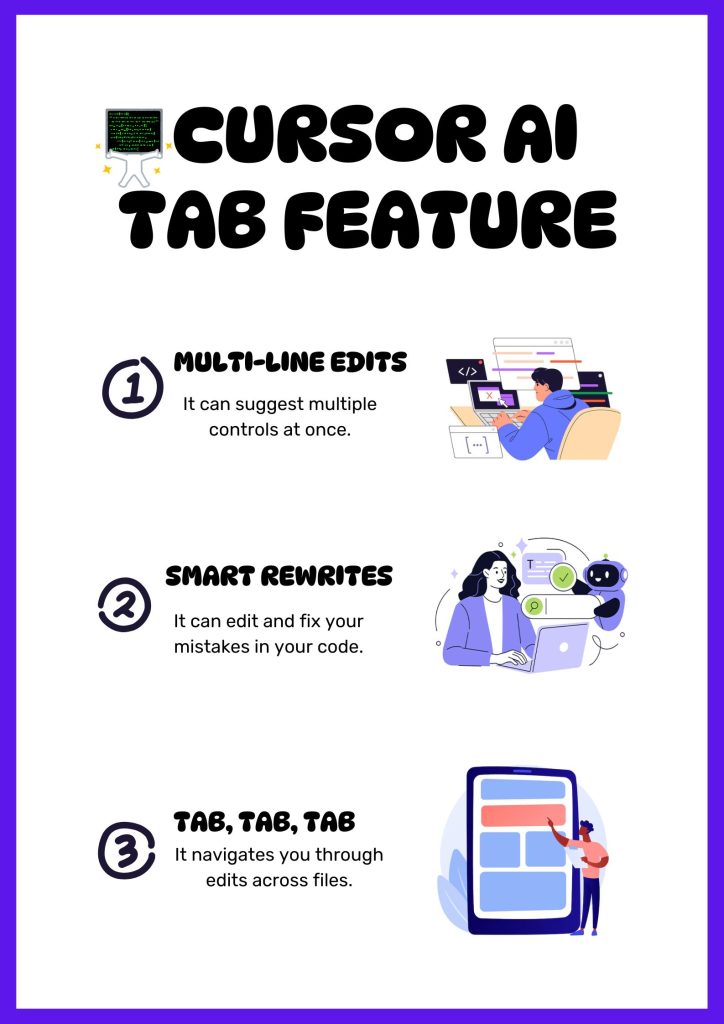
- Multi-line edits can suggest multiple controls at once.
- Smart Rewrites can fix your mistakes in your code.
- Tab, Tab, Tab navigates you through edits across files.
Agent Mode
The agent mode in Cursor AI is like having an AI pair programmer. It completes your coding tasks from start to finish. In the agent mode you can do:
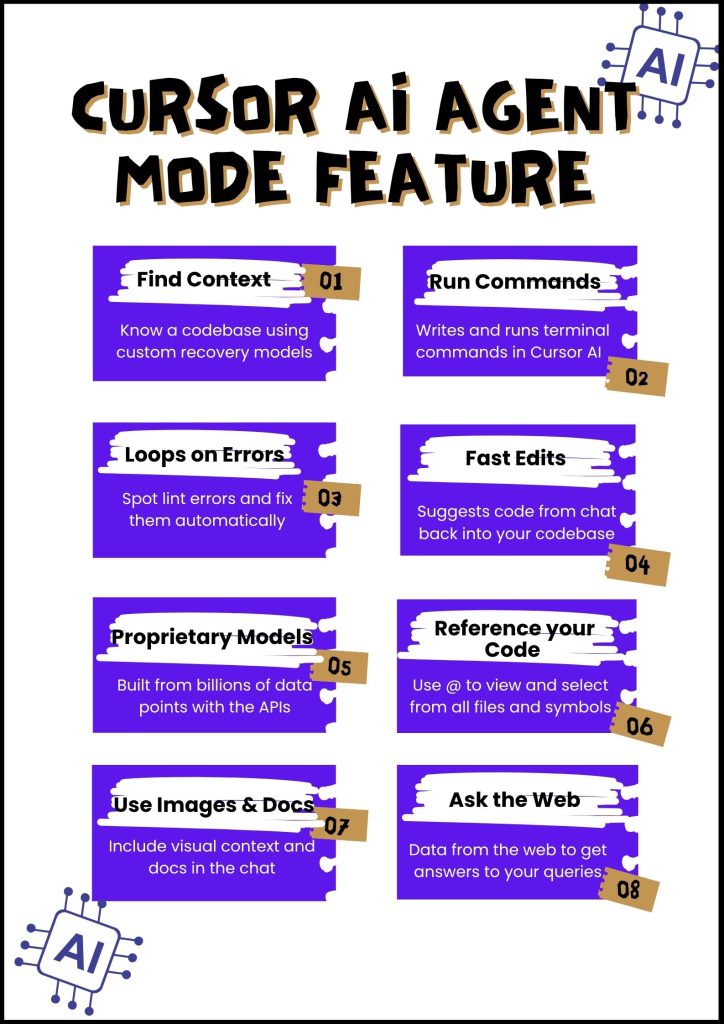
- Find Context to know a codebase using custom recovery models.
- Runs Command writes and runs terminal commands in Cursor AI.
- Loops on Errors Spot lint errors and fix them automatically.
- Fast Edits suggests you code from chat back into your codebase.
- Proprietary Models Built from billions of data points with the APIs.
- Reference your code as context for the AI, and use @ to view and select from all files and symbols.
- Use Images & Documents in the input box to include visual context and docs in the chat.
- Ask the Web for updated data from the web to get answers to your queries.
Inline Edit
The inline edit feature of the Cursor AI lets you generate a completely new code or edit and write the existing code. With this feature, you can do the following:
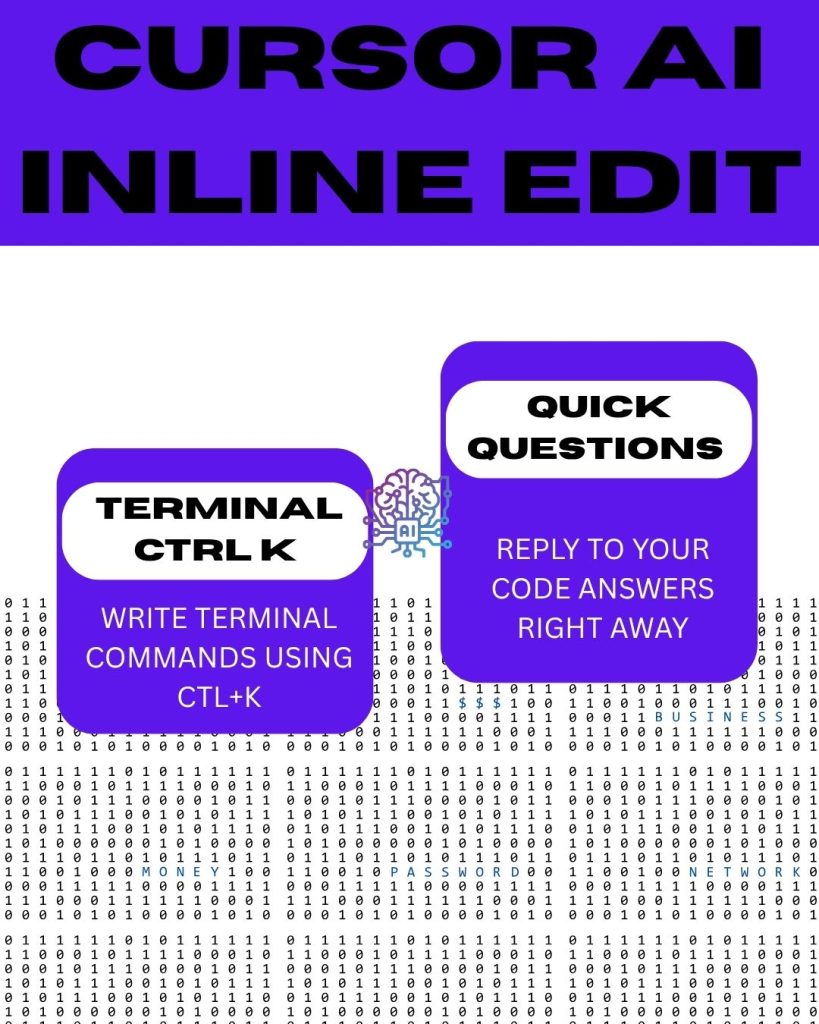
- Terminal Ctrl K writes terminal commands using CTL+K.
- Quick Questions reply to your code answer right away.
How to Use Cursor AI?
Cursor is not just a programming partner; it’s a powerful, AI-powered assistant that helps you write, edit, understand, and refactor code faster than ever. Here’s a more detailed breakdown of how you can use the Cursor AI features.
Download and Install Cursor AI
- Head to https://www.cursor.com/ and click on the download button.
- A pop-up window will open to download the cursor file on your system.
- Once it is downloaded, follow the on-screen instructions to install it.
- After installation, you will be prompted to set it up with these configurations: Keyboard, Language for AI, Codebase-wide, and Add Terminal Command. Select the option you prefer.
How to Use Cursor AI (Tips)
Note: The steps mentioned below are for using Cursor AI for Windows and macOS. On a Windows PC, you can use the Windows button instead of CMD.
Use Inline Code Generation
The cursor AI code editor can generate code from a simple idea.
- Just press CMD+K to open the inline code generator.
- Here, type your prompt and click on the generate button.
- Click the accept button to add the code to your project.
NOTE: You can choose the AI model for code generation using the dropdown menu.
Edit the Existing Code
You can also refactor or tweak existing code. Here is how you do it:
- Highlight the code that you want to change and press CMD + K.
- Explain the changes you want and click on the submit edit button.
Now the cursor AI will show the difference with color-coded lines:
- The red color shows that the code is being removed.
- The green color shows that a new code is being added.
Bug Finder
The bug finder feature of Cursor AI VS Code helps you find bugs in your code. Compares your current changes to the main branch and looks for common mistakes or risky changes. Then it highlights issues you might have missed. To access this feature, press CMD + Shift + P and type bug finder.
Ask Questions
You can ask questions about the generated code. To do that:
- Highlight the code that you want to change and press CMD + K.
- Ask a question you want and click on the quick question button.
- The system will generate and explain the answer.
Use Autocompletion with Tab
The Cursor AI automatically suggests AI-generated completions.
For instance:
You just start typing a code like def minimum(): Cursor will detect your intent and suggest a complete code. Press the I to insert the code.
Boost Query Context
You can add extra context to your prompts in Cursor AI with the @mention feature. @ is used to refer to:
- Files and folders
- Web searches
- GitHub repository
- Docs
For instance:
If you type @web in the question cursor AI, it will search the internet and find relevant answers for your query.
Code Base Questions
You can ask Cursor AI to find a piece of code with the full codebase. Just ask a question in the chat. The cursor will scan your codebase and highlight the most relevant file or function.
Insert Image Support
The cursor code editor supports image inputs. Suppose you made a sketch design for your website; just ask the Cursor to generate the HTML and CSS code for it. To add an image, drag and drop it into the chat window.
Add Docs
If you are using a niche library or a private API, you can add documentation references in Cursor AI to do that.
- Type @ in chat and select Docs from the dropdown.
- Paste a URL for the documentation and give it a name.
- Use this name to refer to this documentation in the chat.
Is the Cursor AI Free or Paid?

Cursor offers both free and paid pricing plans for individual developers, teams, and enterprises. Here is the breakdown of pricing details.
Hobby
Cursor AI for students and casual users is a free plan and includes:
- Pro two-week trial
- Limited agent requests
- Limited tab completions
Pro
It costs $20/month, is best for everyday use, and includes
- Unlimited code completions
- Unlimited slow requests
- 500 fast premium requests
- Background Agents
- Bug Bot
- PR indexing
- Max-context windows
Ultra
It costs $200/month, including pro features and:
- 20x usage on all OpenAI, Claude, and Gemini models
- Access to PR indexing
- Priority access to new features
Teams
It costs $40 per user/month and includes everything in Pro and:
- Centralized billing
- Admin dashboards
- Privacy Mode
- SAML/OIDC single sign-on
Enterprises
It supports custom pricing for additional features, including
- SCIM-based seat management
- Advanced access controls
- Priority support
For more details on pricing, go to the official Cursor AI pricing page.
Is Cursor AI Safe to Use?
Yes, cursor AI is safe to use. If you follow a few smart practices including:
- It features a privacy mode that helps you keep your code secure by ensuring it’s not stored, logged, or used to train AI models.
- Cursor is also SOC 2 Type II certified. It follows strict standards for protecting your data. Everything you send to the AI is encrypted and deleted after it is used.
- You can control what Cursor can access. Use .cursorignore or disable indexing to keep your sensitive files like API keys or .env files private.
However, we recommend you keep Cursor updated, avoid sketchy third-party packages, and treat the AI as a smart assistant. In short, Cursor is safe when you stay in control and use it wisely.
FAQs
Who owns Cursor AI?
Cursor is owned by Anysphere Inc.—a research lab that develops AI systems and was created by friends including Michael Truell (CEO), Sualeh Asif, Arvid Lunnemark, and Aman Sanger.
Is Cursor AI better than ChatGPT?
Cursor and ChatGPT are different tools with different features. Cursor is designed for coding, while ChatGPT is an AI assistance tool.
- Cursor AI is solely for developers, providing context-aware coding suggestions, in-editor code generation, and seamless integration with coding workflows.
- ChatGPT, on the other hand, is for general-purpose AI tasks like answering questions, generating creative text, and providing code explanations outside the context of a specific codebase.
What are the Cursor AI alternatives?
Here are the cursor alternatives:
- GitHub Copilot
- Codeium
- Tabnine
- Windsurf
- Anthropic Claude
Q: What is the difference between Cursor AI and CodeGPT?
Cursor and CodeGPT are both AI-powered tools that help developers in coding. However, they differ in approach and scope.
- Cursor AI is a code editor built on Visual Studio Code, offering features like inline code completion, refactoring, and debugging, while also letting you ask questions related to the coding.
- CodeGPT, on the other hand, is an AI agent platform that focuses on automating various software development tasks, including code generation, PR reviews, and onboarding, beyond just code completion.
Does Cursor AI support C++?
Yes, Cursor does support C++.
Cursor AI vs. Copilot: What’s the difference?
Cursor and GitHub Copilot are both AI-powered coding assistants. However, they work differently.
- Cursor is a full code editor with features like full-project understanding, multi-file edits, bug finding, and task automation. It supports multiple AI models (like GPT-4, Claude, and Gemini) and is great if you want an all-in-one AI coding partner.
- Copilot, on the other hand, is a plugin that gives fast code suggestions and basic chat help inside your existing editor. It’s simpler, quicker, and ideal for small edits.
Can Cursor make Android apps?
Yes, you can use Cursor to build Android apps.
Is the cursor a ChatGPT wrapper?
No, the Cursor is not a ChatGPT wrapper. It’s a full AI-powered code editor that supports multiple AI models, including ChatGPT, that understand and help you in the codebase.