Roblox is a massive, vibrant world where millions of players connect every day. It’s a fantastic place to hang out with friends, but sometimes, you just want a little quiet. Maybe you’re exploring a new game and don’t want to be interrupted, or perhaps you just need a moment of solo-gaming without the pressure of constant social interaction.
The problem? Roblox doesn’t have a single, big, easy-to-find “Appear Offline” button.
However, there is a simple, effective workaround. This guide will walk you through the exact steps on how to appear offline on Roblox, ensuring you can enjoy your favorite experiences without any unexpected visitors.
Why Would You Want to Appear Offline on Roblox?
Before diving into the technical steps, it’s helpful to understand why so many players are looking for a way to go incognito. The desire to appear offline on Roblox isn’t about being anti-social; it’s about control, privacy, and focus.
The Need for a Solo Gaming Session
We’ve all been there: you log in, and instantly, a friend sends you a message asking to join their game. While this is usually fun, sometimes you need to focus on a challenging quest, build a complex structure, or simply explore a new game world by yourself. When you know you can appear offline on Roblox, you remove the distraction and the feeling of obligation to join others, allowing for a truly focused solo experience.
Privacy and Personal Space
For many users, especially younger ones, managing an online presence can be overwhelming. The ability to control who sees your activity is a fundamental aspect of digital well-being. By limiting your visibility, you can protect your personal space and ensure that only the people you choose can interact with you. This is the core reason why learning how to appear offline on Roblox is so valuable.
Avoiding Unwanted Joins and Invites
Roblox’s default settings are designed for social play, meaning friends can often see what game you are in and join you with a single click. If you’re playing a game that requires concentration, or perhaps a game you’re embarrassed to be seen playing, changing your settings is the only way to prevent friends from jumping into your server uninvited.
The Step-by-Step Guide on How to Appear Offline on Roblox
Since Roblox doesn’t offer a one-click solution, we need to manually adjust the privacy settings to achieve the desired effect of being invisible. This method works for PC, Mac, and mobile devices (iOS and Android).
- Open the Roblox website or app and log in to your account.
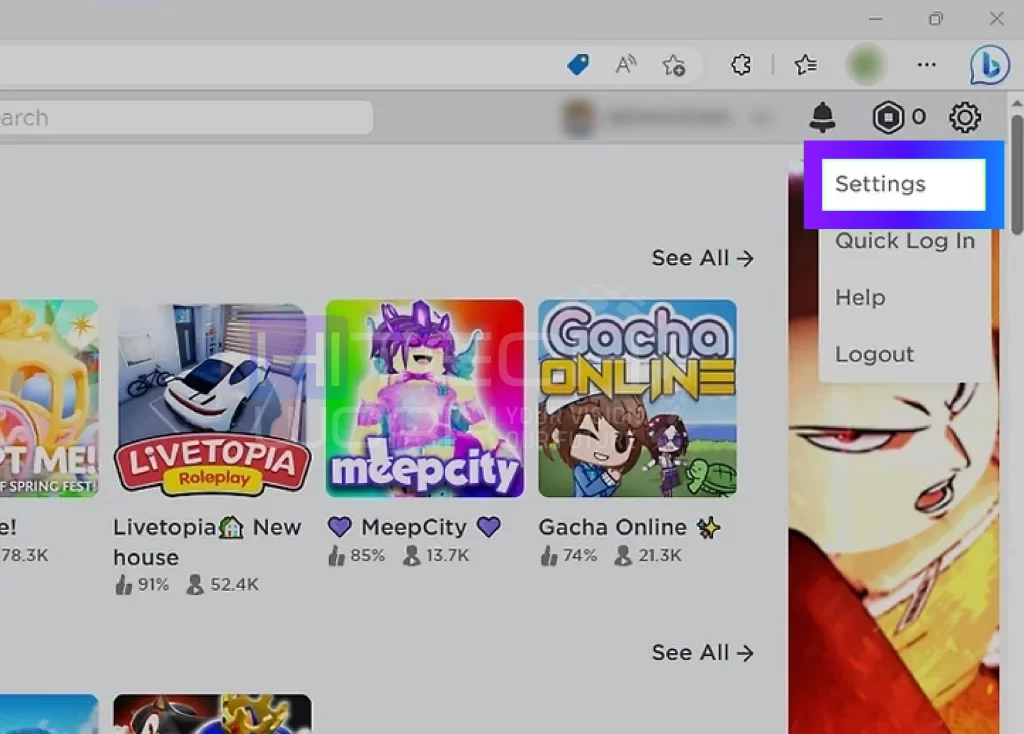
- Click the gear icon located in the top-right corner of the screen and select Settings on Desktop (PC/Mac). Or tap the three-dot icon (More) in the bottom-right corner, then scroll down and select Settings (the gear icon) On Mobile (App).
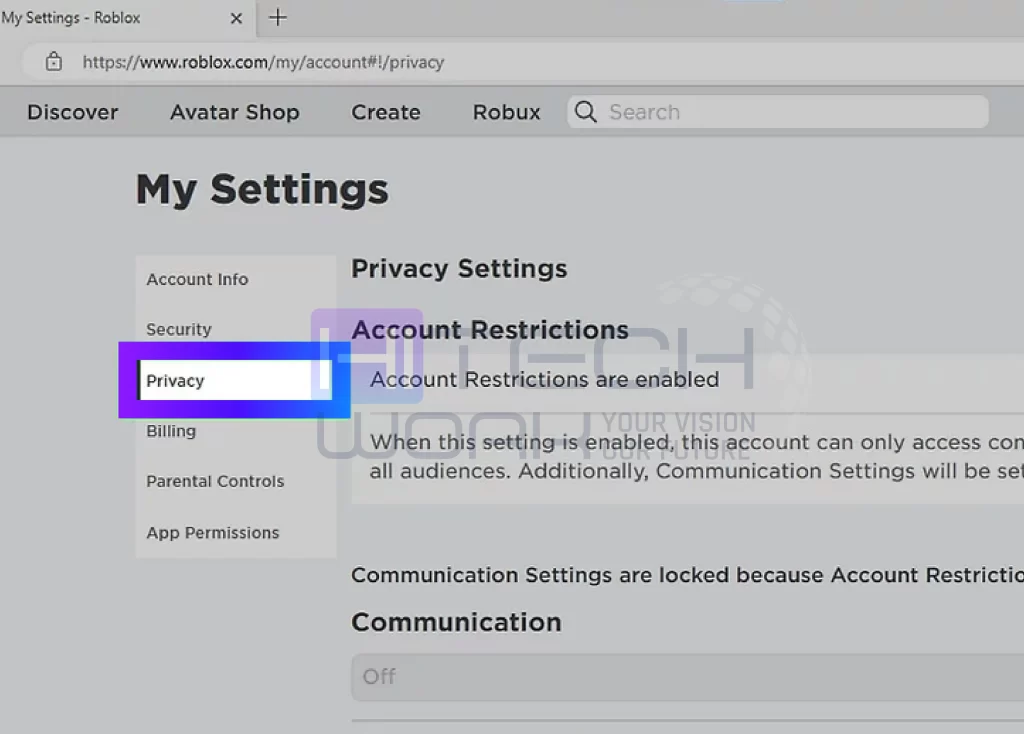
- In the Settings menu, look for and click on the Privacy tab. This is where all the magic happens to make you invisible.
How to Adjust Roblox Visibility and Activity Settings
This section contains the most crucial settings for making yourself invisible and is the key to learning how to appear offline on Roblox.
Hiding Your Current Experience
This is the single most important step. If a friend can’t see what game you’re playing, they can’t join you.
Setting: Look for a setting that says “Who can see my current experience?” or “Show current experience.“
Here changes the dropdown menu from its current setting (likely “Everyone” or “Friends”) to “No one.”
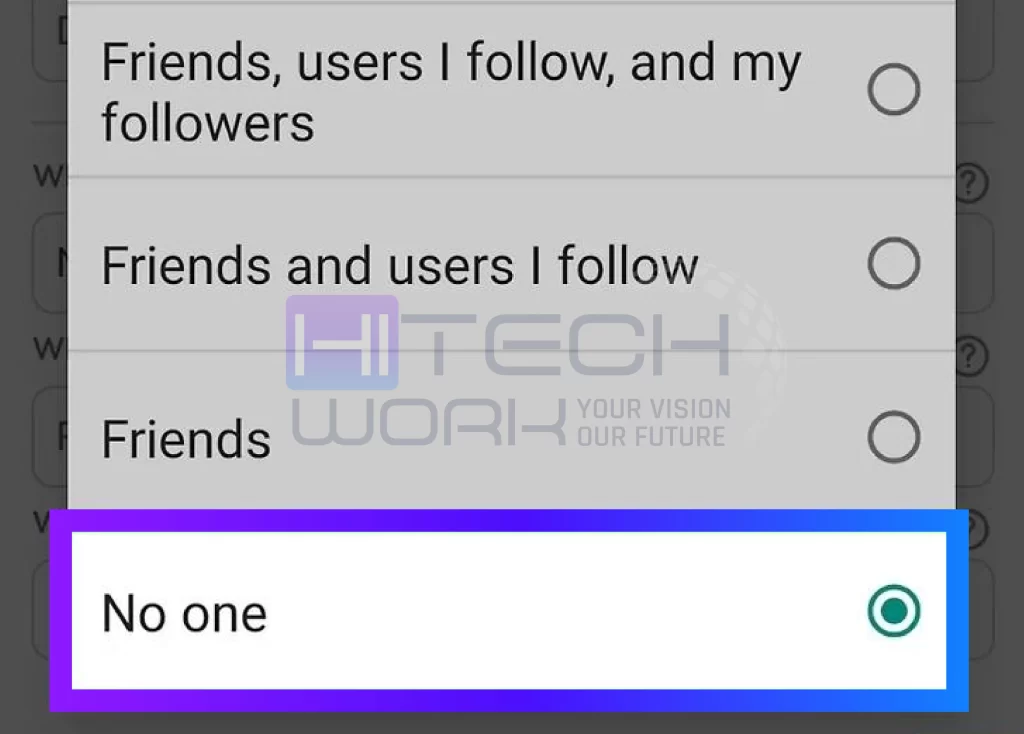
By setting this to “No one,” you effectively hide your activity from your entire friends list. Your profile will no longer show the game you are in, and the “Join” button on your profile will disappear for everyone else.
Turning Off Activity Updates
This setting prevents Roblox from notifying your friends about your recent activity.
Setting: Look for “Update friends about my activity?” (This might be under an “Other Settings” section).
Here toggles this setting to “No” or turn it off.”
This ensures your friends won’t receive automatic notifications about what you’ve been up to, further helping you appear offline on Roblox.
Limiting Communication and Interaction on Roblox
To truly appear offline on Roblox and prevent any kind of interruption, you should also restrict who can communicate with you.
- Who can message me? Change to “No one.”
- Who can chat with me in the app? Change to “No one.”
- Who can text chat with me? Change to “No one.”
- Who can invite me to a private server? Change to “No one.”
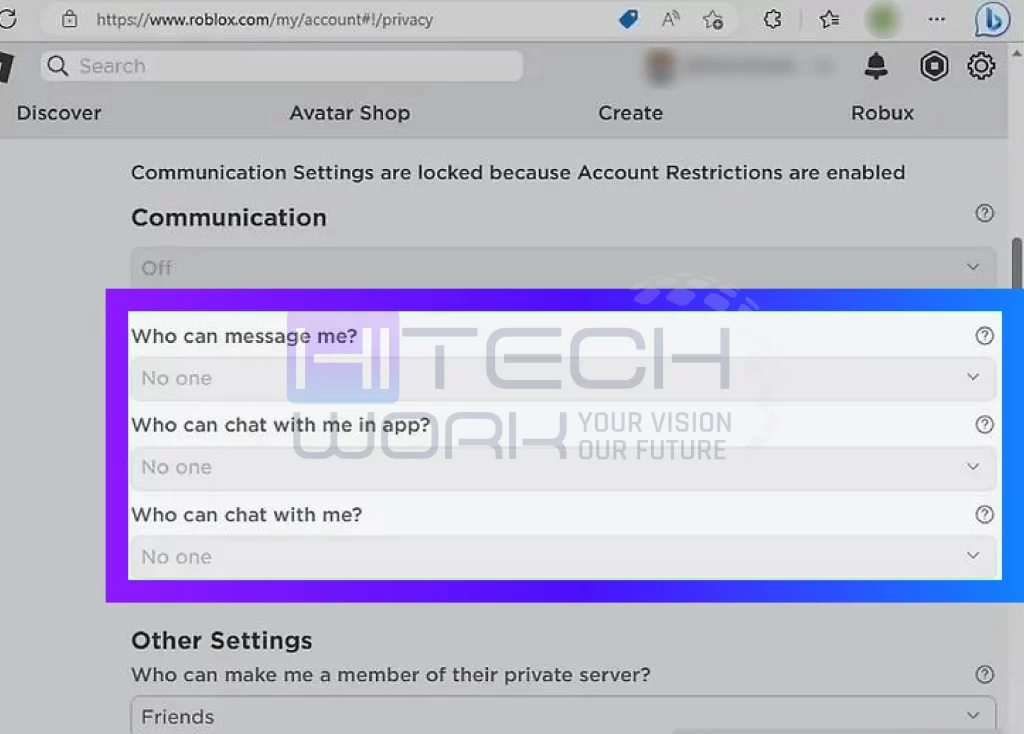
By setting all these communication options to “No one,” you ensure that no one can send you a direct message, chat with you in-game, or invite you to a private server. You will be able to play completely undisturbed.
How to Appear Offline on Roblox in Xbox
While the privacy settings method works for most platforms, there are a couple of specific exceptions and alternatives that can help you appear offline on Roblox even more effectively.
If you play Roblox on an Xbox console, you have the easiest and most direct method available. This is because Roblox uses the Xbox system’s built-in social features.
Press the Xbox Home Button: This opens the guide menu.
- Go to Profile & System: Use the controller to navigate to this tab.
- Select Your Profile: Choose your gamer profile.
- Change Status: Select the “Appear Online” option and change it to “Appear Offline.”
This single change will make you appear offline to all your Xbox friends, and by extension, to your Roblox friends who check your status through the console.
The Secondary Account Method
If you find the privacy settings too restrictive—perhaps you want to keep your main account social but still have a place to play alone—a secondary or “alt” account is a great option.
To use this method to appear offline on Roblox:
- Create a New Account: Set up a brand new Roblox account.
- Do Not Add Friends: Crucially, do not add any of your main account friends to this new account.
Play in Peace: When you log into this secondary account, no one will know it’s you, and no one will be able to see your activity or join your games. This is a guaranteed way to appear offline on Roblox while still using the platform.
How to Check Your Online Status on Roblox
After going through all the steps on how to appear offline on Roblox, you’ll want to confirm that your changes have worked. The best way to check is to ask a trusted friend who is on your Roblox friends list to look at your profile.
What they should NOT see: They should not see a green or blue dot next to your name indicating you are online. They should not see a “Join” button on your profile, and your “Last Online” status should not update to “Now.”
What they MIGHT still see: While your activity is hidden, some platforms might still show a very subtle indicator that you are logged into the Roblox website or app, but your in-game status will be hidden. The goal is to hide your activity and prevent joins, which the privacy settings accomplish.
How to Revert and Go Back Online on Roblox
When you’re ready to be social again, simply reverse the steps. Go back into your Settings > Privacy tab and change the visibility and communication settings back to your preferred level, such as “Friends” or “Everyone.”
The ability to appear offline on Roblox is a powerful tool for managing your online experience. Whether you’re seeking focus, privacy, or just a quiet moment, these privacy settings give you the control you need to enjoy the platform exactly how you want to.
FAQs
Can I appear offline on Roblox?
Yes, you can appear offline on Roblox.
Is there a single button to appear offline on Roblox?
No, unfortunately, Roblox does not currently have a single, official “Appear Offline” button like some other gaming platforms. The process requires manually adjusting several settings in the Privacy section of your account to hide your activity and communication options.
If I appear offline, can my friends still message me?
If you follow the full guide on how to appear offline on Roblox and set all communication options (like “Who can message me?” and “Who can chat with me in app?”) to “No one,” then your friends will not be able to send you messages or chat with you in-game.
Will appearing offline prevent people from joining my game?
Yes. The most important step is changing the setting “Who can see my current experience?” to “No one.” When this is set, the “Join” button disappears from your profile for everyone else, making it impossible for them to jump into your current game session.
Will I still see my friends’ online status if I appear offline?
Yes, changing your own privacy settings only affects your visibility to others. You will still be able to see which of your friends are online and what games they are playing, provided their own privacy settings allow it.