Instagram is one of the most popular social media apps, and if you use it every day, it can store a lot of temporary files on your device. Over time, these cached files can take up storage space and may cause the app to load slowly, lag, or even crash occasionally.
If you’re looking for how to clear Instagram cache, don’t worry; it’s a simple process that won’t delete your photos, messages, followers, or account. It only removes temporary files that Instagram saves to help the app run faster. In this guide, you’ll learn how to clear Instagram cache on Android, iPhone, and web browsers with easy, step-by-step instructions.
What Is Instagram Cache?
Instagram cache is basically temporary stuff the app stores so it can make your browsing feel faster. Like, instead of reloading the same images, videos, and profile details every time you open Instagram, it keeps some of those files locally on your device.
Sure, this cached data helps pages load quicker, but it does not just stop there. It keeps building up the more you use the app. Over time, it can take up a pretty noticeable chunk of storage, and then you might run into annoying performance problems too.
Why Should You Clear Instagram Cache?
Clearing your Instagram cache can feel pretty helpful, like it might quietly help in a few different ways, such as freeing up some storage on your device and also getting rid of that annoying slow loading or lagging. It can even help when the app starts to behave weirdly, like crashing or freezing mid-scroll. Another thing is that it can refresh outdated content, so you are not stuck seeing the old stuff.
That said, it’s good to remember that clearing the cache is only about temporary files. Your account details, chats, photos, reels, and saved posts are still there, so nothing important gets removed.
How to Clear Instagram Cache on Android
Android users have it pretty easy, since the operating system lets apps clear the cached stuff directly.
Do this:
- Open Settings on your phone.
- Tap Apps or Apps & Notifications.
- Pick Instagram from the list of apps.
- Tap Storage & Cache.
- Then choose Clear Cache.
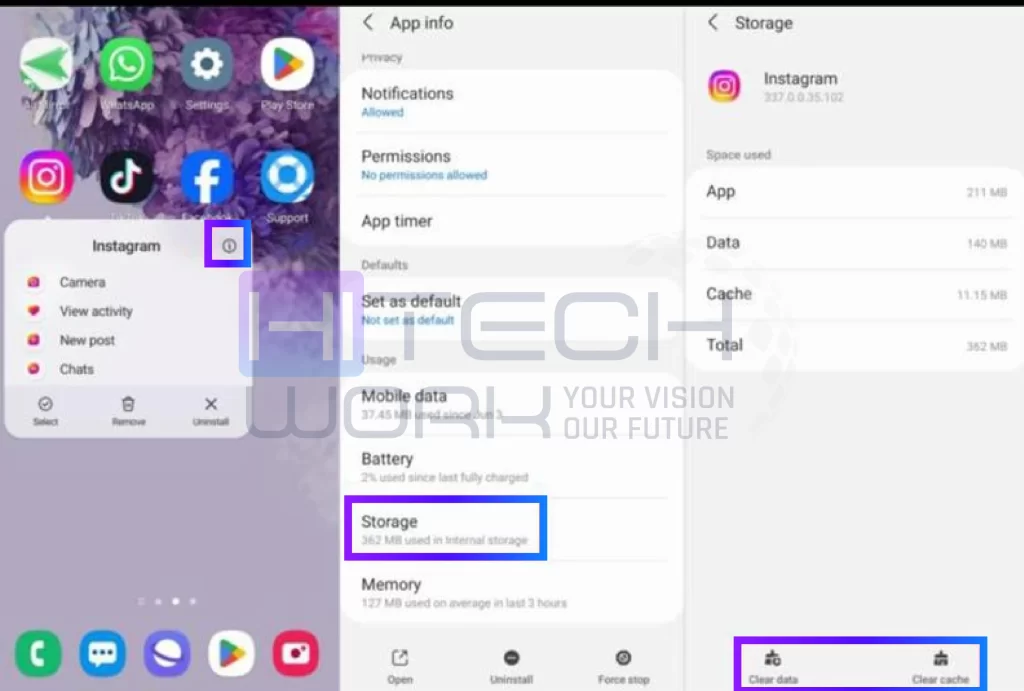
All done. When you launch Instagram again, it will rebuild new cache files by itself.
Try not to hit Clear Storage or Clear Data unless you actually want to reset the app in full, because it can end up logging you out.
How to Clear Instagram Cache on iPhone
Unlike Android, iPhones don’t really come with a clear cache button just for Instagram.
If you are looking up how to clear the Instagram cache on iOS, the usual suggestion is to reinstall the app, rather than wiping anything manually.
Here’s what you do:
- Press and hold the Instagram app icon.
- Tap Remove App.
- Select Delete App.
- Go to the App Store.
- Download Instagram again.
- Then sign back in to your account.
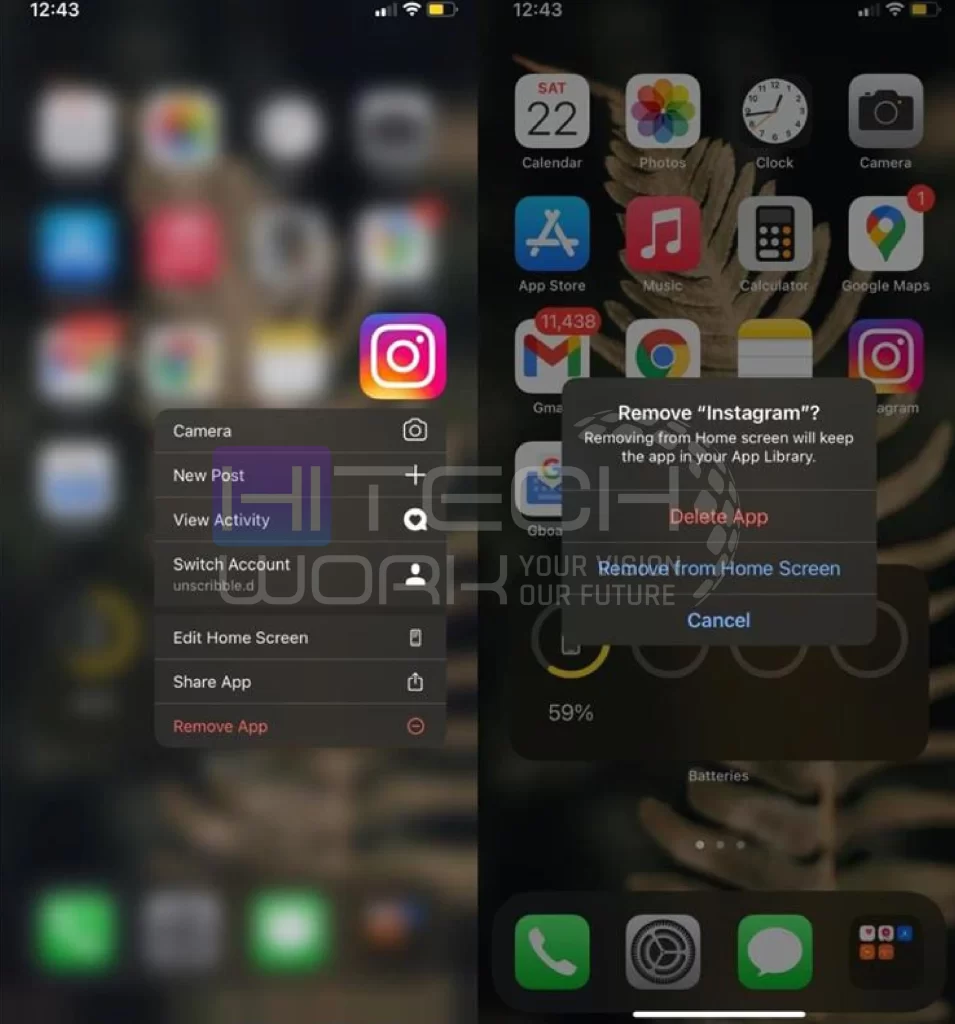
By reinstalling, you kick out the cached stuff while still keeping your Instagram account safe. Your posts and data stay stored on Instagram’s servers, so nothing vanishes from there.
How to Clear Instagram Cache in a Web Browser
When you use Instagram via Chrome, Edge, Firefox, or Safari, the browser will keep some stored, cached website information. Like a quick memory thing.
To clear Instagram cache, you can do this
Google Chrome
- Open Chrome.
- Tap the three-dot menu.
- Pick Settings.
- Go to Privacy and Security.
- Click Clear Browsing Data.
- Select Cached Images and Files
- Then hit Clear Data
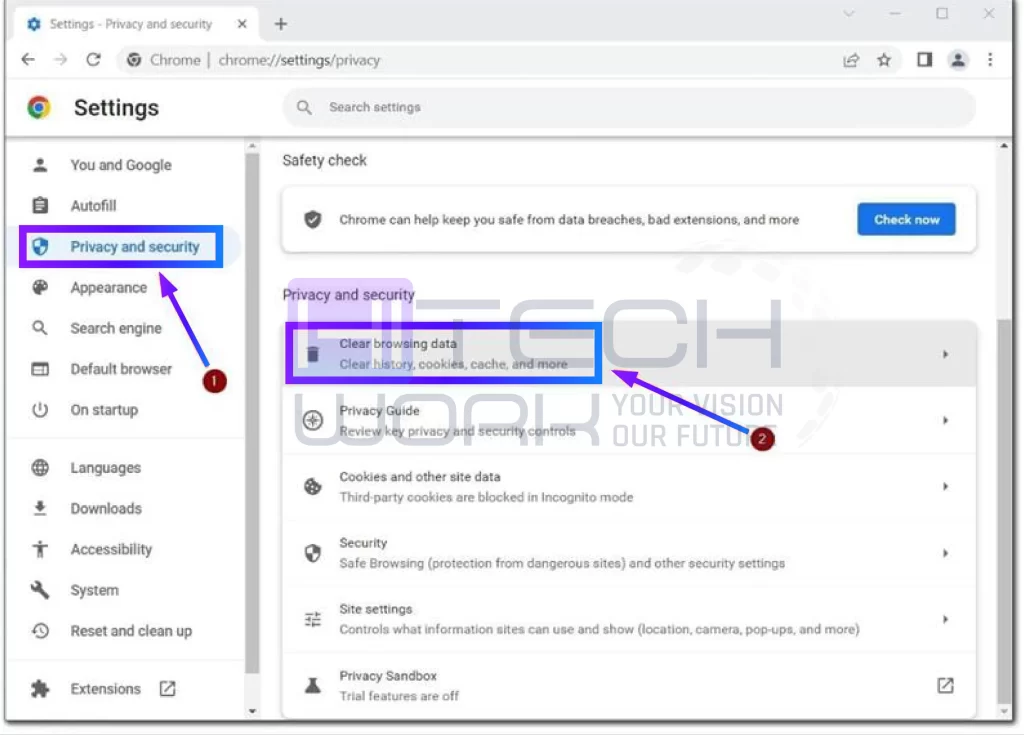
Safari
- Open Safari Settings
- Choose Clear History and Website Data
- Confirm it, then wait a sec
After doing this, those cached site files will be removed, including the Instagram ones.
How Often Should you Clear your Instagram Cache?
Honestly, there’s no exact schedule. For most people, it’s enough to clear the cache maybe every few months, like every so often, not constantly.
But if you’re really using Instagram a lot—watching a bunch of Reels, posting Stories daily, or you handle more than one account then it can be smart to do it every one to three months. That way, the app stays more responsive and just runs smoother overall.
FAQs
Q.1: How to clear Instagram feed?
If you want to clear your Instagram feed ,use Not Interested, unfollow unwanted accounts, and engage with content you prefer.
Q.3: How to clear Instagram search history?
To clear Instagram search history, go to Profile > Menu > Your Activity > Recent Searches > Clear All.
Q.1: Does clearing Instagram cache improve battery life?
Indirectly, it can. If Instagram is struggling with corrupted cache files or repeatedly loading data, clearing the cache may reduce unnecessary background activity and slightly improve battery performance.
Q.2: Can clearing the Instagram cache make the app use more mobile data?
Yes, temporarily. Since cached files are removed, Instagram needs to download images, videos, and other content again, which may increase data usage for a short time.
Q.3: Why does Instagram’s cache become so large?
Instagram stores temporary files from Reels, Stories, photos, videos, profile images, and searches. The more you use the app, the larger the cache becomes.
Q.4: Is clearing Instagram cache the same as clearing app data?
No. Clearing cache removes temporary files only, while clearing app data resets the app and may log you out or erase local settings.
Q.5: Can clearing the Instagram cache fix notification issues?
Sometimes yes. If notification problems are caused by corrupted temporary files, clearing the cache may help. However, notification settings, permissions, or server-related issues may also need to be checked.
Final Thoughts
Figuring out how to clear Instagram cache is kind of a handy skill to have, especially when the app starts acting weird or lagging. Those temporary cache files let Instagram load a little faster at first, yet later they can end up taking up extra storage and possibly mess with performance. The good news is that clearing the cache is usually quick, pretty safe, and it won’t touch your account, followers, or the personal content you’ve posted.
No matter if you’re on Android or iPhone, or you’re using Instagram in a web browser, sticking to the right process can help you get back space, refresh what the app is showing, and fix a bunch of everyday glitches. So, if Instagram starts feeling slow or behaves unexpectedly, clearing the cache is one of the first troubleshooting moves that’s worth trying.