Have you ever sat down with a bowl of popcorn, ready to watch your favorite show or a funny YouTube clip, only to be stopped by a mysterious black screen? It is incredibly frustrating when you click play and, instead of the video starting, a small box pops up with a confusing message stating:
This video file cannot be played. (error code 232011)
When this happens, it feels like your computer is speaking a secret language that you don’t understand. You might wonder if your internet is broken, if the website is down, or if your computer is finally giving up on you.
The good news is that this error isn’t a sign of a permanent disaster. In fact, it is a very common glitch that happens to millions of people every day. In this guide, we break down how you can fix this error in just a few minutes.
What is Error Code 232011?
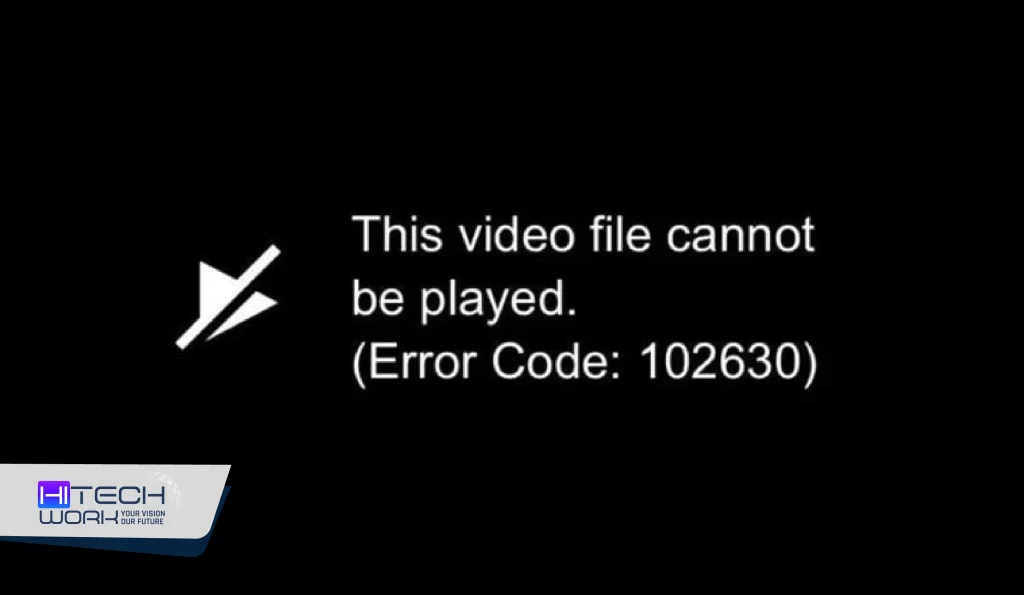
Most websites use a special “video player” to show you content. One of the most popular ones is called JW Player. When you see error code 232011, it is usually the JW Player telling you, “Hey, I tried to load this video for you, but something got in the way, and I can’t show it.”
Think of it like trying to order a burger at a restaurant. You (the user) ask the waiter (the browser) for a burger (the video). The waiter goes to the kitchen (the website’s server), but the door is locked, or the chef is busy doing something else. The waiter comes back and says, “Sorry, I can’t get that for you right now.” That “sorry” message is basically what the error is.
Usually, this error happens because of a “communication breakdown” between your web browser (like Google Chrome, Safari, or Firefox) and the website you are visiting. It isn’t usually a problem with the video itself, but rather something blocking the path between you and the video.
Why Does Error Code 232011 Happen?
Browser Cache and Cookies
Your browser tries to be helpful by saving bits of information from websites you visit. This is called “cache.” Sometimes, this old information gets “stale” or corrupted, like old milk in the fridge. When the browser tries to use that old info to play a new video, it gets confused.
Extensions and Ad-Blockers
We all love blocking annoying ads, but sometimes those ad-blockers are a little too aggressive. They might mistake a piece of the video player for an ad and block it by mistake.
Hardware Acceleration
This is a fancy term for your browser asking your computer’s graphics card for extra help. Sometimes, the browser and the graphics card don’t get along, causing the video to crash.
Outdated Browser
If you haven’t updated your browser in a long time, it might not know how to talk to modern video players.
VPN or Proxy Issues
If you are using a VPN to hide your location, the video website might get suspicious and block the connection.
Fixes for this Video File Cannot be Played Error Code 232011
You don’t need to be a computer genius to fix this Video File Cannot be Played error. Let’s get into the step-by-step solutions to clear error code 232011.
Quick Fix: Sometimes, a tiny glitch happens during the loading process. To fix it, hit the refresh button, you will see next to the address bar in your web browser.
If a simple refresh doesn’t work, try a “Hard Refresh.”
On a Windows PC
- Hold the Ctrl key and press F5.
On a Mac
- Hold Command + Shift and press R.
1. Try Incognito or Private Mode
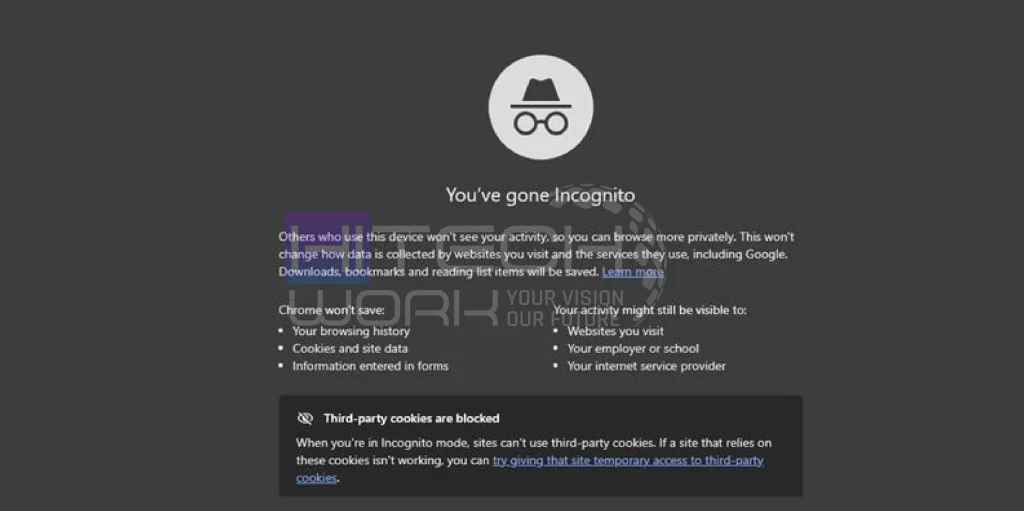
If refreshing didn’t work, the next best test is to open the website in an “Incognito” or “Private” window.
Why does this help?
When you go Incognito, your browser turns off all your saved cookies and extensions. It’s like a “clean slate” for your browser. If the video plays perfectly in Incognito mode, then you know for sure that one of your extensions or your saved browser data is causing error code 232011.
To open an Incognito window in Chrome:
- Click the three dots in the top right corner.
- Select “New Incognito Window.”
2. Clear Your Browser Cache and Cookies
Over time, browsers collect a lot of digital junk. Clearing your cache and cookies is like taking out the trash; it makes everything run smoother.
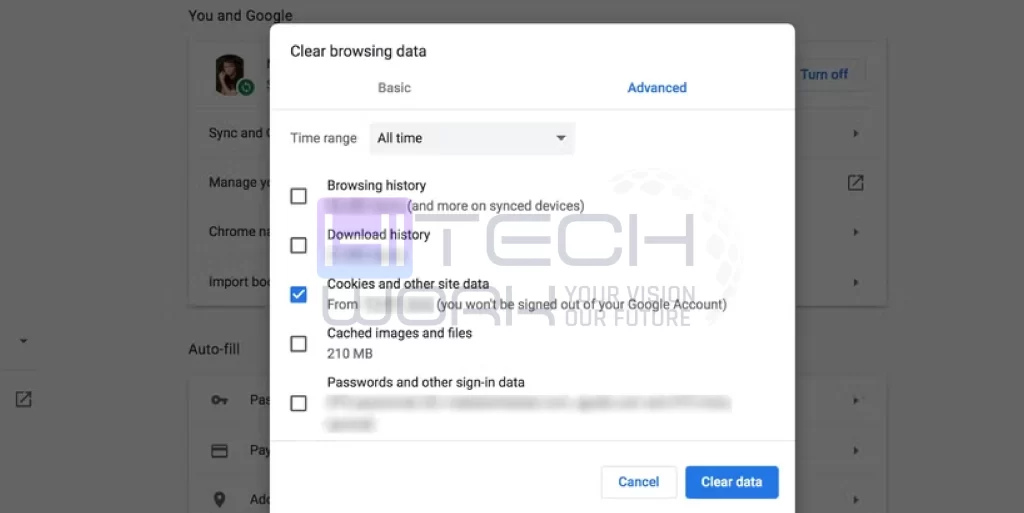
Here is how to do it in Google Chrome (the steps are very similar for other browsers):
- Click the three dots in the top right corner.
- Go to Privacy and security (or “More Tools” in some versions).
- Click on Clear browsing data.
- Set the time range to “All time.”
- Make sure “Cookies and other site data” and “Cached images and files” are checked.
- Click Clear data.
3. Disable Problematic Extensions
Ad-blockers are the most common reason for error code 232011. They are designed to stop scripts from running, and sometimes they stop the video script by mistake.
To see if an extension is the problem:
- Go to your browser’s settings and find the “Extensions” or “Add-ons” menu.
- Turn off your ad-blocker or any “privacy protector” extensions.
- Go back to the video and refresh the page.
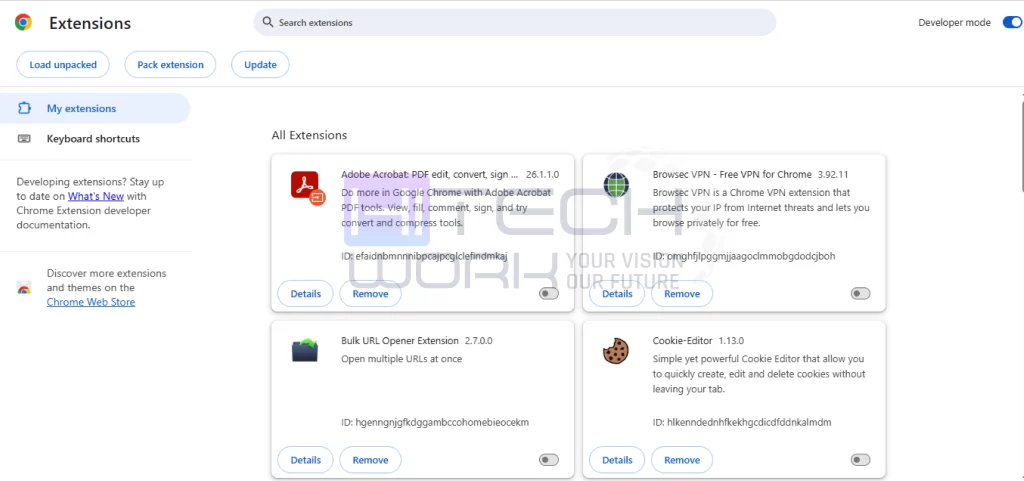
If the video starts playing, you’ve found the problem! You don’t have to delete your ad-blocker forever. Most ad-blockers have a “Whitelist” or “Exclude” feature. You can simply tell the ad-blocker to stay turned off only for that specific website while keeping it on for the rest of the internet.
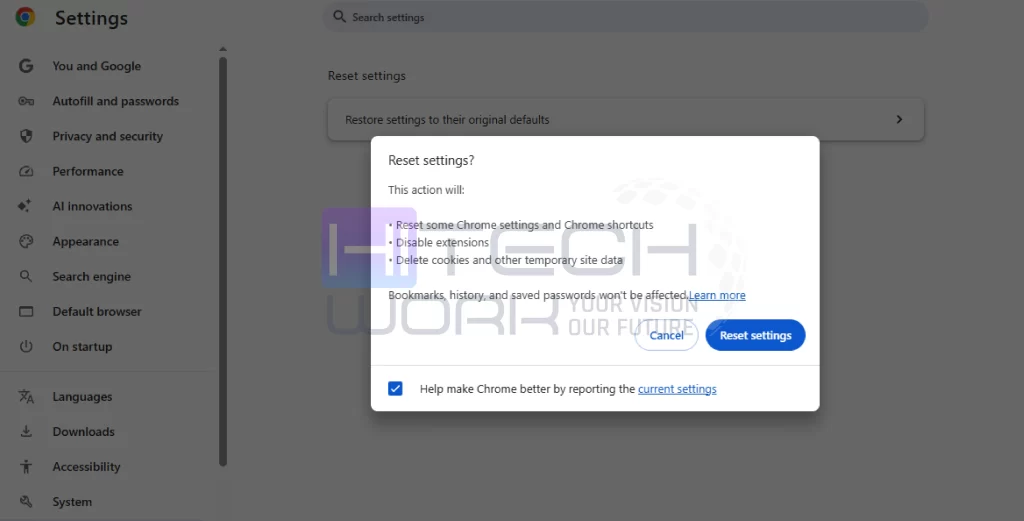
4. Reset Browser Settings
Remove custom configurations and settings that trigger the 232011 error. Once you delete it, you will lose all saved passwords and related data.
To reset settings on the browser:
- Click the three dots and go to Settings.
- On the left side, click on reset settings.
- Then click on the Restore Settings to default.
- Now, click reset settings from the pop-up window.
5. Turn Off Hardware Acceleration
This is a slightly more “techy” fix, but it is very effective for fixing error code 232011. Hardware acceleration is a setting that lets the browser use your computer’s hardware to make things like videos look smoother. However, if your computer’s drivers are old, this setting can actually cause videos to fail.
To turn it off in Chrome:
- Click the three dots and go to Settings.
- On the left side, click on System.
- Find the toggle that says “Use graphics acceleration when available” (it might be called hardware acceleration).
- Switch it to Off.
- Relaunch your browser.
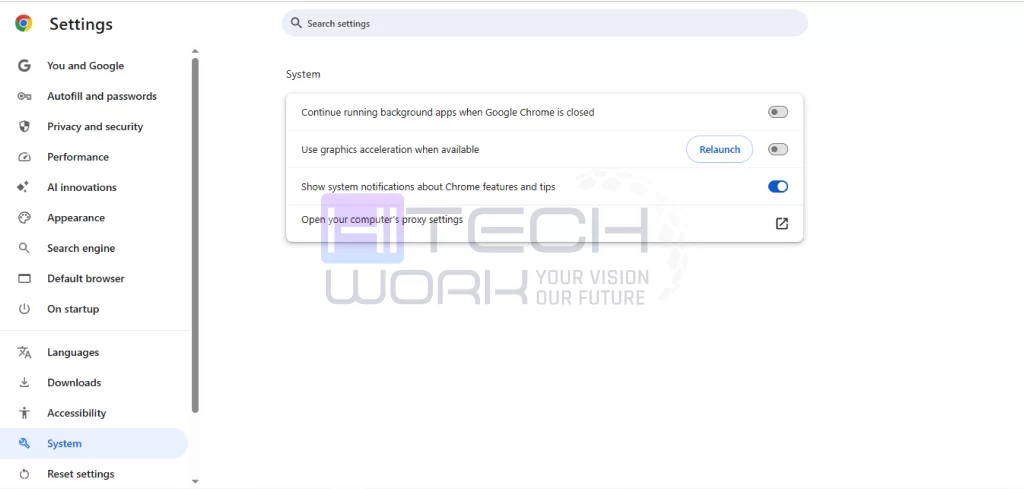
By turning this off, you are telling the browser to handle the video processing itself rather than asking the graphics card for help. This often bypasses the conflict that causes error code 232011.
6. Update Your Browser
Browsers like Chrome, Firefox, and Edge are updated constantly to fix bugs and security issues. If you are using a version that is several months old, it might struggle to play newer video formats.
Usually, browsers update automatically, but sometimes they get stuck. To check for an update:
- Go to your browser settings.
- Look for “About Chrome” or “About Firefox.”
- The browser will automatically check if there is a new version available.
- If there is, click “Update” and restart the browser.
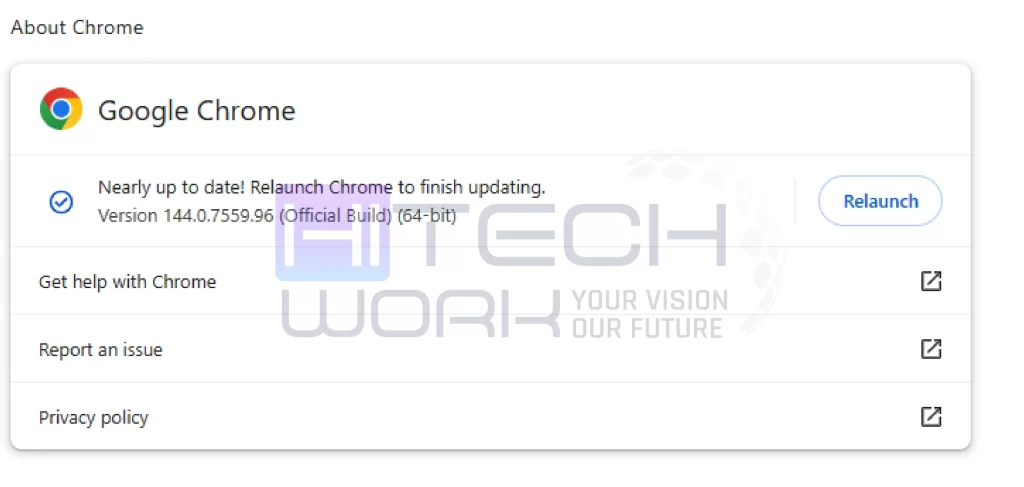
Keeping your software up to date is one of the easiest ways to avoid seeing error code 232011 in the future.
7. Check Your Internet and VPN
Sometimes the problem isn’t your browser at all, it’s your connection. If your internet is very slow or “unstable,” an internet speed test can help you to check the internet speed and make sure that the bandwidth connection is suitable for video streaming.
Also, if you are using a VPN (Virtual Private Network), try turning it off. Many streaming sites block VPNs because they want to make sure you are in a country where they have the rights to show that video. When the site detects a VPN, it might trigger error code 232011 to stop the playback. Try connecting to your normal home Wi-Fi without any extra layers and see if that fixes the issue.
How to Fix Error Code 232011 on Mobile Devices
While this error is most common on laptops and desktops, it can sometimes pop up on your phone or tablet if you are using a mobile browser. The fixes are very similar:
- Clear Safari/Chrome Cache: Go into your phone settings, find your browser app, and look for the “Clear History and Website Data” option.
- Check for System Updates: Make sure your phone’s operating system (iOS or Android) is up to date.
- Switch to an App: If you are trying to watch a video on a website and getting error code 232011, check if that website has an official app. Apps are usually more stable than mobile browsers for watching videos.
What if None of the Fixes Work?
If you have tried everything and still see error code 232011, the problem might be on the website’s end. Sometimes servers go down, or the video file itself has been deleted. Try visiting the site on a different device (like your phone using cellular data). If it doesn’t work there either, the website is likely having technical difficulties, and you will just have to wait for them to fix it.
FAQs
Is error code 232011 a virus?
No, it is not a virus. It is simply a playback error message from a video player (usually JW Player). It means the video couldn’t be loaded because of a browser or connection issue, not because your computer is infected.
Why does error code 232011 only happen on some websites?
This usually happens because different websites use different video players and different security settings. A website with a lot of ads might trigger your ad-blocker, which then causes this. While a site like YouTube (which uses its own player) might work perfectly fine.
Will clearing my cookies delete my saved passwords?
When you clear cookies, you will be logged out of most websites. However, if you have your passwords saved in your browser’s “Password Manager” or “Google Account,” they won’t be deleted. You will just have to click “Login” and let the browser autofill them again.