Have you ever tried to visit a website and it didn’t load properly, or an outdated page kept showing up? Many times, the culprit behind these problems is your device’s DNS cache. Flushing it can solve these issues quickly. In this article, we’ll explain in simple terms what DNS cache is, why it matters, and how to flush DNS cache on different devices like Windows, Mac, and ChromeOS.
What Is DNS Cache?
DNS stands for (Domain Name System). Think of it as the internet’s phone book; it converts website names into IP addresses that computers understand. Your DNS cache is a temporary storage on your device that keeps records of recently visited websites so they can load faster next time.
While this makes browsing faster, problems can occur when the cache becomes outdated or corrupted. This can result in:
- Websites are not loading properly
- Old versions of pages are appearing
- Connection or “Page Not Found” errors
When you clear cache, these outdated records and allow your device to retrieve the most up-to-date website information.
How to Flush DNS Cache in Windows
Flushing DNS cache on Windows is quick and easy:
- Press Windows + R to open the Run dialog.
- Type cmd and press Enter to open the Command Prompt.
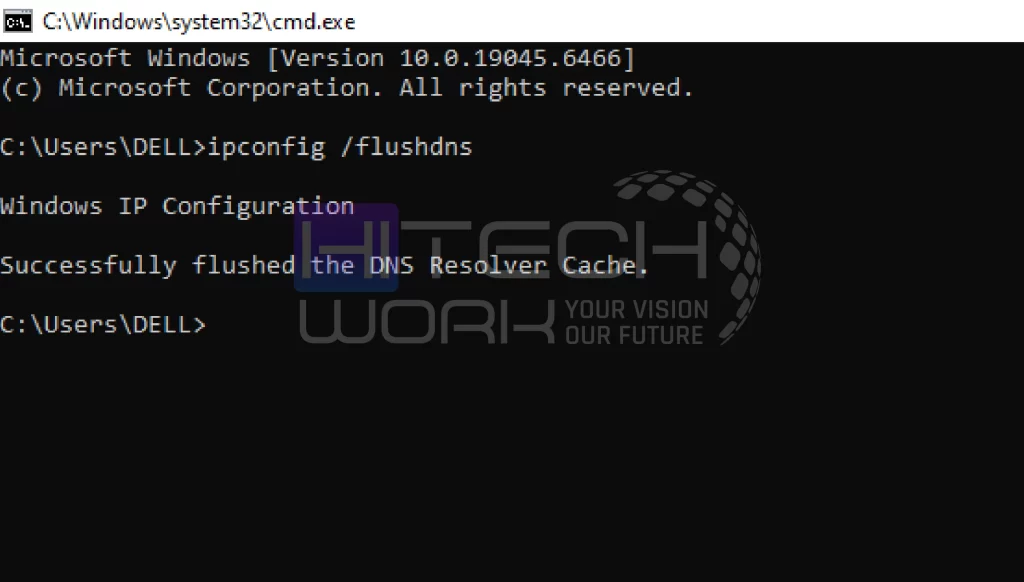
- Type the following command and press Enter: ipconfig /flushdns
- You’ll see a message saying, “Successfully flushed the DNS Resolver Cache,” which confirms the process.
This simple step can solve many internet problems, especially if a website isn’t loading or is showing outdated content.
How to Flush DNS Cache in Mac
On a Mac, the steps depend on your macOS version:
- Open Terminal from the Applications or Utilities folder.
- Enter the command based on your macOS:
If you have macOS Big Sur and later versions of macOS Big Sur, Monterey, Ventura, Sonoma, and Sequoia: sudo dscacheutil -flushcache: sudo killall -HUP mDNSResponder
If you have macOS El Capitan, Sierra, High Sierra, Mojave, or Catalina: sudo killall -HUP mDNSResponder
Enter your password when prompted. Mac doesn’t show a confirmation message. But you can check if it worked by visiting previously problematic websites; they should now load correctly.
How to Flush DNS Cache on ChromeOS
To flush DNS cache on your ChromeOS, follow these steps:
- Open a new tab on Chrome.
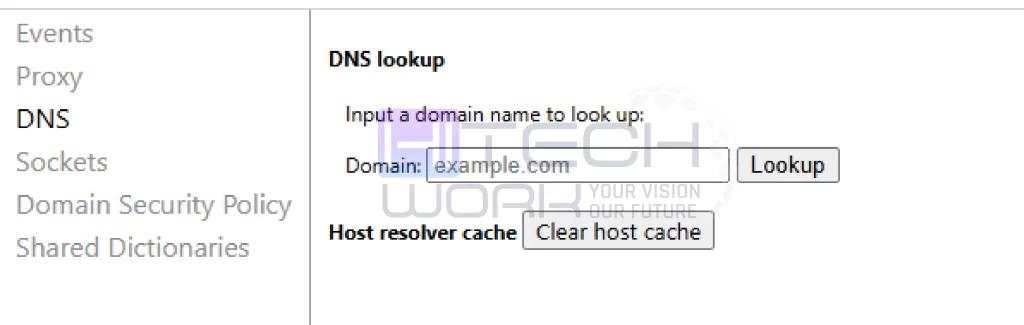
- Type and enter this command: chrome://net-internals
- Choose DNS from the menu.
- Then click on the Clear host cache button.
Why Should You Flush DNS Cache?
Here are some reasons to flush DNS cache regularly or when you face issues:
- Fix Website Loading Errors: Sometimes websites update their addresses. Clearing the DNS cache ensures your device fetches the latest information.
- Improve Browsing Speed: Old or corrupted DNS records can slow down your internet experience. Flushing the cache helps your browser work efficiently.
- Enhance Privacy: Your DNS cache keeps a history of sites you visit. Flushing it removes these records, adding an extra layer of privacy.
- Troubleshoot Network Problems: Many common connectivity issues can be resolved simply by clearing the DNS cache.
Conclusion
Knowing how to flush DNS cache is a small but powerful step to improve your internet experience. It helps fix website loading problems, speeds up browsing, and protects your privacy. Whether you are on Windows, Mac, Android, or iOS, the process is simple and safe. The next time a website isn’t loading correctly or shows outdated content, don’t panic, flush the DNS cache, and enjoy a smoother online experience.
FAQs
What is cache?
A cache is basically a high-speed temporary storage. It keeps frequently accessed data, so it can be retrieved much faster. Cache significantly boosts the CPU, web browser, application, and server performance. The system checks the cache first; if the data is there (a “cache hit”). It loads instantly, so the websites load quicker, and apps run smoother.
Does clearing the DNS cache clear history?
No, clearing your DNS cache does not clear your browsing history. DNS cache holds website IP address records for faster loading, while browser history is a log of pages you have visited, stored within the browser itself, along with cookies and saved data.
How to clear the cache?
To clear the cache on your browser
- Press Ctrl + Shift + Delete.
- The Clear Browsing Data menu will appear.
- Now select Cached images and files and set the time range.
- Click the Clear Data button.
How often should I flush the DNS cache?
It’s not necessary to do it regularly. Only flush the DNS cache when browsing issues occur or for privacy reasons.
Will flushing the DNS cache slow down my browsing?
No, the first visit to websites may be slightly slower as your device fetches new data, but overall speed improves.
Is it safe to flush the DNS cache?
Yes, it’s completely safe and does not affect personal files or system settings.
Can flushing the DNS cache fix all internet problems?
Not all, but it resolves many common issues like outdated pages, “Page Not Found” errors, and slow browsing.