As digital collaboration, remote learning, and home entertainment continue to prosper in 2025, screen mirroring has become a go-to solution for sharing material across devices. Whether you’re giving a corporate presentation, hosting a movie night, or displaying a lesson, projecting your phone, tablet, or computer screen offers a convenient and immersive viewing experience.
Thanks to wireless technologies and projectors like CZUR StarryHub, which supports AirPlay, Miracast, DLNA, and Chromecast, connecting your gadgets has never been easier. With no extra apps required and support for all major operating systems, modern projectors are now smarter, faster, and more user-friendly, perfect for any home, school, or workplace setup. In this guide, you’ll learn exactly how to mirror iPhones, Androids, and PCs step-by-step.
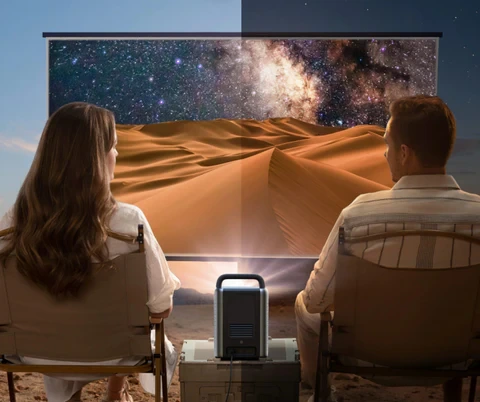
1. How to Screen Mirror iPhone to a Projector?
Thanks to Apple’s built-in AirPlay technology, screen mirroring from an iPhone to a projector is smooth, fast, and doesn’t require any connections or third-party software. This strategy is extremely beneficial for corporate presentations, school classes, or streaming video directly from your iPhone.
Step 1: Connect to the Same Wi-Fi Network
Make sure your iPhone and the projector are connected to the same Wi-Fi network before getting started. AirPlay only works when both devices share the same local network.
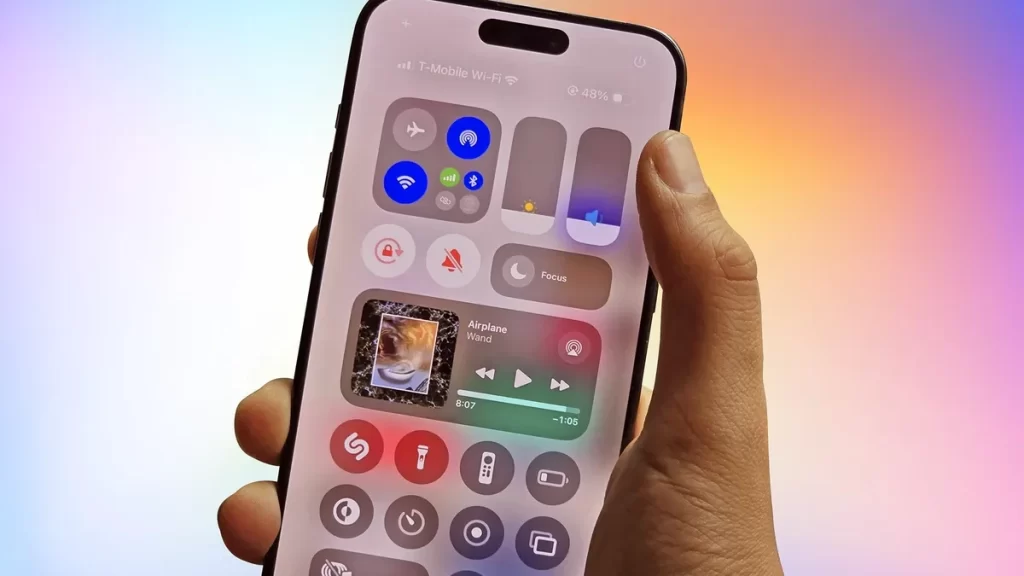
Step 2: Open the Control Center
Access the Control Center on your iPhone. On iPhones without a Home button, swipe down from the top-right corner to access the Control Center. If your iPhone has a Home button, swipe up from the bottom of the screen instead. Once the Control Center opens, touch the Screen Mirroring option.
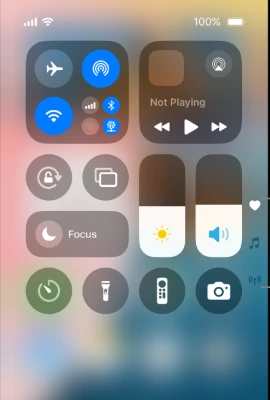
Step 3: Select the Projector
Your iPhone will now search for available AirPlay-compatible devices nearby. When the projector appears in the list, just tap its name to establish the connection. Within a few seconds, your iPhone screen will begin mirroring on the projector, allowing you to display slides, play videos, or demonstrate apps wirelessly.
2. How to Screen Mirror an Android Phone to a Projector?
Screen mirroring from an Android device to a projector has become remarkably smooth, especially with the availability of Miracast and built-in casting options on most Android phones. Whether you’re presenting a presentation, video, or mobile app, it merely takes a few touches to get your Android screen on the big show.
Step 1: Connect to the Same Wi-Fi Network
First, make sure your Android phone and projector are connected to the same Wi-Fi network. This step is required for successful wireless mirroring.
Step 2: Access the Casting Feature on Android
Swipe down from the top of your Android screen to open the Quick Settings menu. Look for options labeled Cast, Smart View, Wireless Display, or similar, depending on your phone’s manufacturer. Tap on it to begin scanning for nearby devices.
Step 3: Select the Projector
Your Android phone will begin searching for nearby Miracast-enabled or wireless display-compatible devices. Once the projector shows in the list, tap its name to establish the connection. Within a few moments, your phone screen will be reflected on the projector, allowing you to display your media or app in real-time.
3. How to Screen Mirror PC to a Projector?
Screen mirroring from a Windows PC or laptop to a projector like StarryHub is easy, especially given most modern Windows systems come with Miracast built-in. This means you don’t need to install any third-party apps to get started. The StarryHub projector fully supports wireless screen casting from Windows, making it a smooth solution for both commercial and personal use.
Step 1: Connect to the Same Wi-Fi Network
Ensure both your Windows PC and the StarryHub projector are powered on and connected to the same Wi-Fi network. Wireless casting only works when both devices are on a shared network.
Step 2: Open the Windows Connect Menu
On your keyboard, press Windows + K. This shortcut opens the built-in “Connect” sidebar, where you can search and pair with nearby wireless displays.
Step 3: Choose the StarryHub Projector
From the list of available devices, locate and pick StarryHub. It may take a second or two for your PC to notice it, but once visible, just click it.
Step 4: Wait for the Connection to Complete
Your PC will automatically start connecting. After a few seconds, your screen will be mirrored wirelessly to the projector. You may immediately begin presenting, broadcasting, or sharing anything from your PC in real time.

FAQ about Screen Mirroring Devices to Projectors
What are the Requirements for Screen Mirroring?
To screen mirror, you need a compatible device, a projector that enables wireless projection, and a shared Wi-Fi network. Both devices must be on the same network for casting to work effectively, and the projector must support the screen mirroring protocol used by your device.
What is the Purpose of Screen Mirroring?
Screen mirroring allows users to wirelessly project what’s on their mobile or computer screen onto a larger display. It’s especially beneficial in meetings, classes, and home theaters, enabling real-time sharing of videos, presentations, apps, or documents with larger audiences without needing physical wires or complicated setups.
Do you need a Screen to use a Projector?
No, it is not necessary. You can use a plain white wall or other light, flat surfaces. However, employing a good projection screen boosts image sharpness, color accuracy, and brightness, especially in situations with ambient light or when presenting intricate visuals or high-resolution content.
What Apps Allow Screen Mirroring on Projectors?
Several programs allow screen mirroring, including Google Home, AirPlay, Smart View, and third-party tools like ApowerMirror or AirServer. Some recent projectors like StarryHub allow built-in casting without apps, employing protocols like Miracast, Chromecast, and DLNA for immediate wireless screen sharing.
Final Verdict
Screen mirroring is a great way to remotely broadcast material from your mobile device or PC to a projector. Whether it’s a presentation or a movie, modern casting technologies make the process simple and seamless. With minimal setup, you can transform any space into a smarter, connected environment for sharing, teaching, or entertaining on the big screen.
However, if you encounter issues like connection drops, lag, or devices not being detected, check out our troubleshooting guide on screen mirroring not working to help you resolve them quickly.