Have you ever played a video game, lined up the perfect shot, and then missed because your crosshair moved too far? Or maybe you are working on a computer, and the cursor feels like it is sliding on ice? If this happens to you, the culprit is likely a setting called “mouse acceleration.”
For many gamers, this setting is a nightmare because it makes their movements inconsistent. In this article, we are going to explore exactly what this feature is, why it exists, and most importantly, how to disable mouse acceleration on your computer.
What is Mouse Acceleration?
Imagine you are driving a car. Usually, if you turn the steering wheel one inch, the car turns a specific amount. This is how a “raw input” mouse works.
Now, imagine if you turned the steering wheel one inch really fast, and the car suddenly turned way sharper than usual. That would be scary, right? That is basically what mouse acceleration does.
When this setting is on, the distance your cursor moves on the screen depends on how fast you move your hand, not just how far you move it.
- Slow movement: The cursor moves a short distance.
- Fast movement: The cursor flies across the screen.
This feature was originally designed for old office computers with small mouse pads. It helped people get from one side of the screen to the other without lifting their mouse. However, for modern gaming and precision work, it is terrible. That is why learning how to disable mouse acceleration is the first step for a better gaming experience.
Why You Should Turn It Off
You might be thinking, “If it helps me move the cursor faster, isn’t that good?” Not really. Here is why.
1. Muscle Memory is Key
Your brain learns how far to move your hand to get the cursor to a specific button or enemy head. This is called muscle memory. If mouse acceleration is on, your brain gets confused. It can’t predict where the cursor will land because the speed changes the distance.
2. Consistency in Gaming
In games like Valorant, Call of Duty, or Counter-Strike, consistency is everything. You want your mouse to act the same way every single time. If you flick your wrist quickly to turn around, you want to turn 180 degrees exactly. With acceleration, a fast flick might spin you 270 degrees, leaving you looking at a wall while your enemy shoots you.
3. Better Control for Design
Even if you aren’t a gamer, graphic designers and artists hate this feature. Drawing a straight line or selecting a tiny pixel requires precision. Acceleration makes the cursor feel “floaty,” making detailed work much harder.
How to Disable Mouse Acceleration on Windows 10 and 11
Windows is the most popular operating system for gaming, but it has this feature turned on by default. Microsoft calls it “Enhanced Pointer Precision,” which is a fancy name for mouse acceleration. Here is the step-by-step guide to turning it off.
- Click on the Start Menu and type in “Mouse Settings.” Click on the first option that appears.
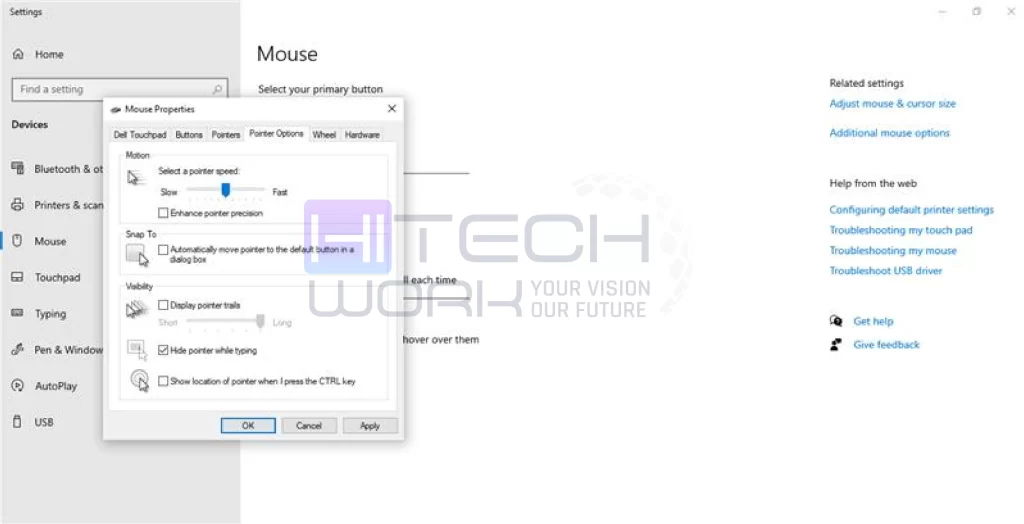
- Look for a link that says “Additional mouse options.” Click that. A small, old-school window will pop up.
- In that new window, you will see the Pointer Options tab. Click on it.
- Look for the Motion section. Underneath the speed slider, you will see a box labeled Enhance pointer precision. Uncheck the box to turn it off.
- Click Apply and then click OK.
How to Disable Mouse Acceleration on a Mac
Apple computers are great, but they love mouse acceleration. In fact, macOS has a very heavy acceleration curve that is hard to remove.
Method 1:
- Click the Apple Menu and go to System Settings.
- Search for “Mouse.”
- Look for “Tracking Speed.”
In newer versions of macOS, there is sometimes a toggle for “Natural Scrolling” or advanced options, but Apple often hides the raw acceleration toggle.
Method 2:
Since Apple hides the button, you often have to use a command line or a third-party app.
- Open the Terminal app.
- Type this code defaults write.GlobalPreferences com.apple.mouse.scaling -1 and hit Enter.
This command tells the computer to stop changing the speed based on how fast you move. You will need to restart your computer for it to work.
Why Does My Mouse Feel Slow Now?
You turned off “Enhance Pointer Precision.” You move your mouse, and suddenly… it feels like you are dragging it through mud. It feels slow and sluggish.
Do not turn acceleration back on!
This heavy feeling is normal. Remember, you were used to the computer giving you a “speed boost” whenever you moved your hand fast. Now that the boost is gone, you are feeling the real speed of your mouse.
To fix this, you don’t need acceleration. You need to adjust your DPI.
What is DPI?
DPI stands for “Dots Per Inch.” It basically measures how sensitive your mouse sensor is.
- Low DPI (400-800): You have to move your hand a lot to move the cursor.
- High DPI (1600-3000+): You barely touch the mouse, and the cursor flies.
When you learn how to disable mouse acceleration, you usually need to increase your DPI to make the mouse feel fast again. If you have a gaming mouse, there is likely a small button on top of it (near the scroll wheel). Press that button to cycle through different speeds until you find one that feels comfortable.
How to Disable Mouse Acceleration in Popular Games
Sometimes, even if you turn it off in Windows, your video games might try to turn it back on. Games have their own settings that can override your computer’s rules. If you want true “Raw Input,” you need to check the settings inside your favorite games, too.
Here is how to check for some of the most popular games.
Fortnite
- Open the game and go to Settings (the three lines in the corner).
- Click on the Mouse and Keyboard icon (it looks like a mouse).
- Look for a setting called “Ignore Mouse Input.”
- Make sure this is set to ON.
This tells Fortnite to ignore Windows settings and use the raw data from your mouse. This effectively solves the issue for players asking how to disable mouse acceleration inside Fortnite.
Minecraft
Minecraft is a bit different.
- Go to Options > Controls > Mouse Settings.
- Turn OFF “Cinematic Camera” (this adds a smooth, floaty feeling that acts like acceleration).
- Adjust the Sensitivity slider.
- In newer versions, there is an option specifically for “Raw Input.” Make sure that it is ON.
Call of Duty / Warzone
- Go to Settings > Keyboard & Mouse.
- Click on the Mouse tab.
- Look for “Mouse Acceleration” and set it to 0.00.
- Look for “Mouse Filtering” and set it to 0.00.
The “Raw Input” Advantage
You will hear pro gamers talk about “Raw Input” a lot. But what does it actually mean?
Raw Input means the game talks directly to your mouse. It ignores Windows, it ignores your background apps, and it takes the signal straight from the sensor.
When you figure out how to disable mouse acceleration, you are essentially forcing your computer to use Raw Input.
- Input: You move the mouse 2 inches.
- Output: Game turns the character 90 degrees.
It never changes. This builds trust between your hand and your eyes. If you miss a shot, you know it was your fault, not the computer doing something weird. This helps you learn faster. If the computer is always changing the speed, you can never truly master your aim.
FAQs
Will disabling mouse acceleration damage my computer
No, it is totally safe and will not harm your hardware or software.
Should I turn mouse acceleration off for my laptop trackpad?
No. Laptop trackpads are very small. If you turn off acceleration on a trackpad, you might have to swipe your finger three or four times just to get the cursor from one side of the screen to the other.
Does disabling acceleration fix mouse lag?
Not exactly. Mouse lag is usually caused by a slow computer, a bad internet connection, or a broken mouse sensor.
What is the best DPI setting to use after I turn it off?
There is no single “best” setting, but most pro gamers use a DPI between 400 and 800 for shooter games, or 1600 for strategy games.
Is disabling mouse acceleration good?
Yes, disabling mouse acceleration is good. If it is turned on, it can make your gaming designing or editing harder. That is why disabling it gives you a smoother mouse moment.