Are you missing calls or texts because your iPhone is stuck in Do Not Disturb mode? Don’t worry, you’re not alone. Just like you, many iPhone users accidentally leave DND on. The good news is, turning it off only takes a few seconds once you know where to look.
In this guide, we’ll show you step-by-step how to turn off Do Not Disturb on iPhone across different iOS versions (including iOS 17 and earlier). You’ll also learn how to adjust settings so that only important notifications like calls from family or work can break through, without silencing everything.
Let’s dive in and make sure you never miss an important call or message again.
DND: Do Not Disturb iPhone
The Do Not Disturb feature on iPhone silences incoming calls, alerts, and notifications. When you activate DND, a crescent moon icon appears in the status bar and on the lock screen. This feature helps you to stay undisturbed by muting calls, texts, and emergency alerts on your iPhone.
How to Turn Off Do Not Disturb on iPhone
DND is the most useful feature when you need to focus on one thing. But it can also cause a few issues if you miss important notifications or calls. It’s quite simple to turn off Do Not Disturb iPhone.
However, you can disable the DND mode on your iPhone from the settings app and control center. But the steps may vary depending on the iOS software you have. Here’s how you can do it on the new iOS & older versions.
How to Turn Off Do Not Disturb on iPhone (iOS 15 or Latest) via Settings App
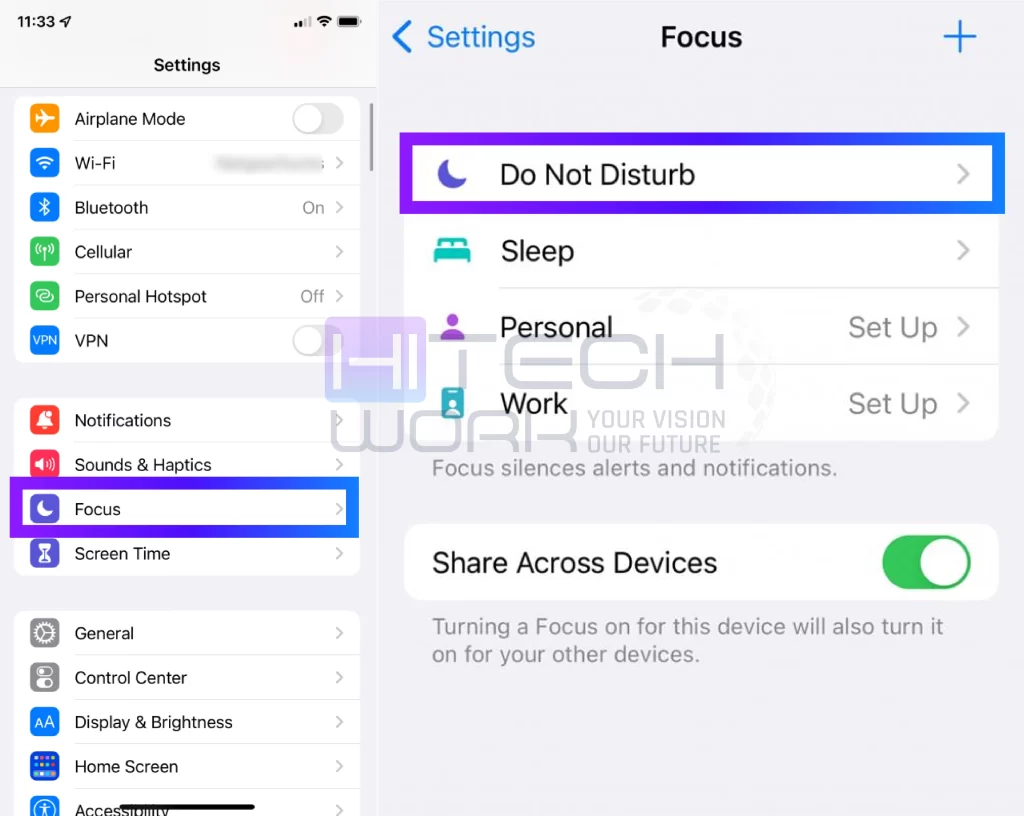
- Launch the Settings App on your iPhone.
- Click on Focus > Do not disturb.
- Turn the toggle off next to the Do Not Disturb option.
(iOS 14 or Older)
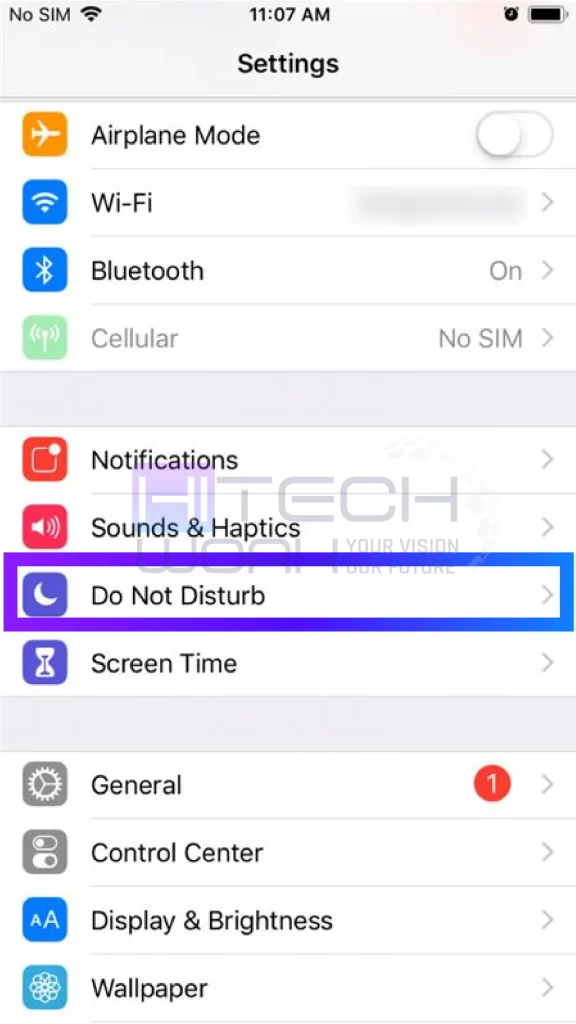
- Go to the Settings App.
- Choose the Do Not Disturb option.
- Now turn off the toggle, and make sure it turns grey.
How to Turn off Do Not Disturb on iPhone (iOS 15 or Latest) via Control Center
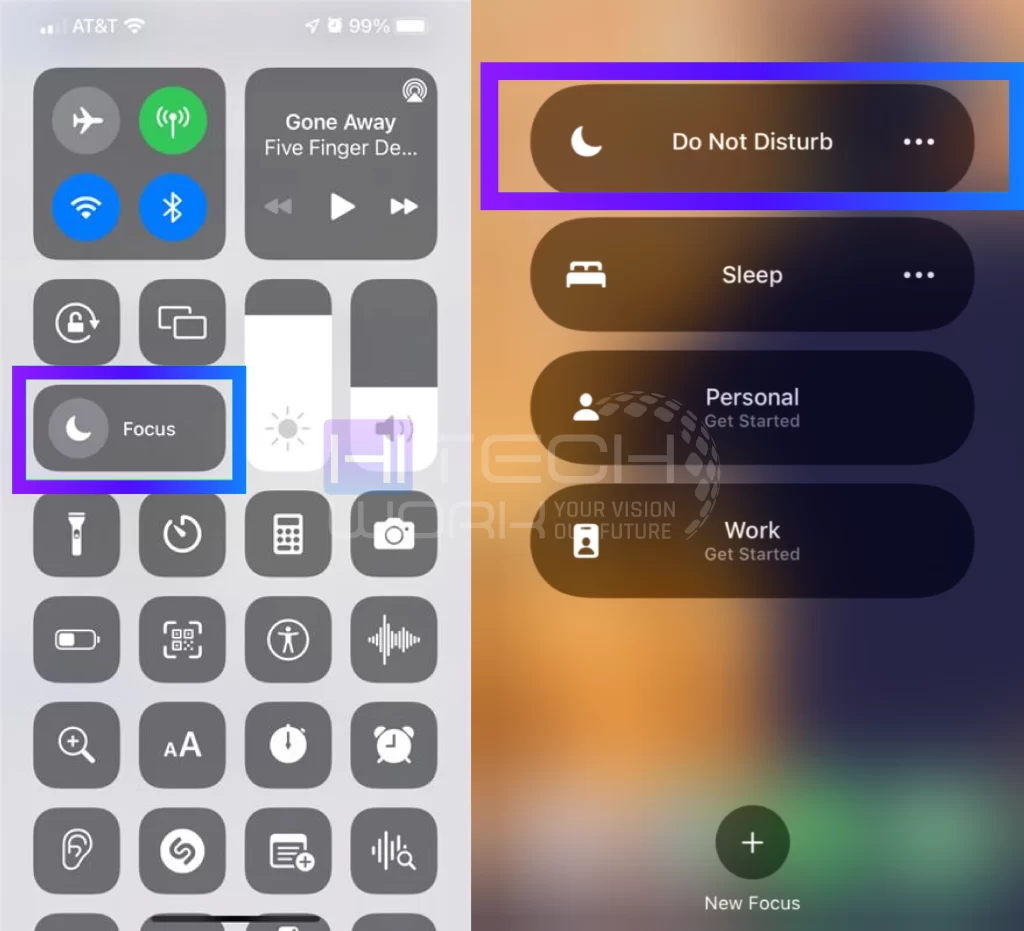
- Swipe down from the top right of the screen and tap on Focus.
- Then, choose Do not Disturb.
- When you toggle off the icon, you’ll no longer see the crescent icon on the top of the screen.
(iOS 14 or Older)
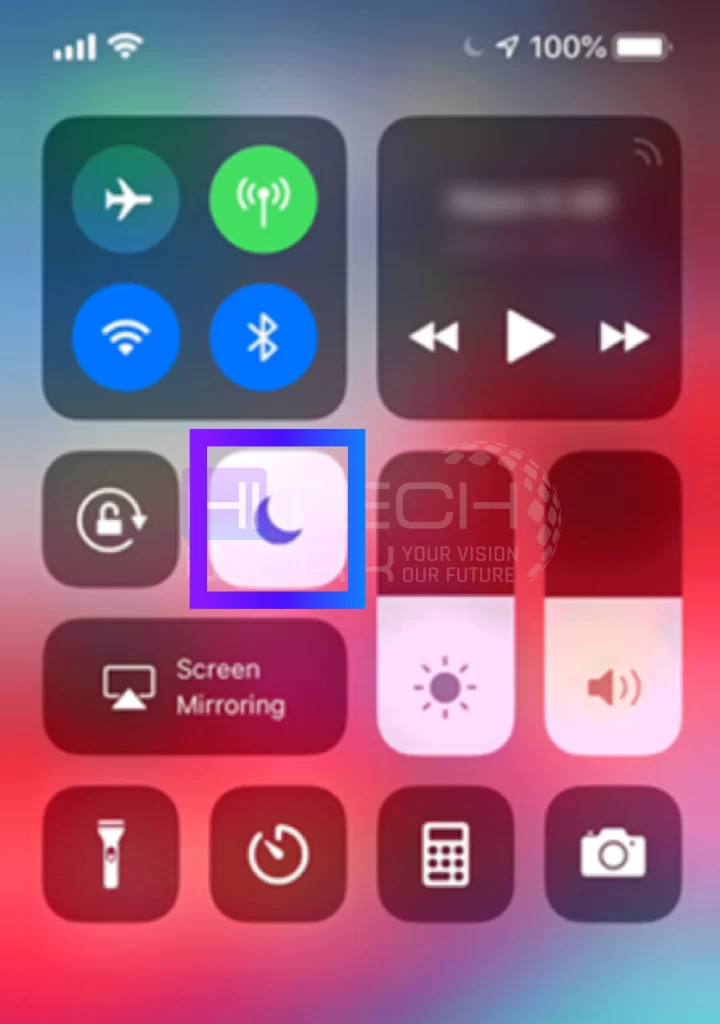
- Swipe down from the top-right corner of the screen iPhone (iPhones with Face ID) or up from the bottom of the iPhone screen (iPhones with Face ID).
- Touch on the Do Not Disturb icon, which looks like a crescent.
- It will turn off when the icon turns gray.
NOTE: If you want to unsilence incoming calls, alerts, and notifications on iPhone, just turn the toggle on.
How to Customize Do Not Disturb iPhone
If you are using the DND feature but worried about important calls, don’t fret because you can customize the feature to meet your goals. Here’s how you can customize the DND mode on iOS 15 or newer.
- Launch the Settings App on your iPhone & click on Focus.
- Next, tap on Do Not Disturb.
- Now, choose any options to set a timer, contacts, and apps, or add exceptions.
However, the latest iOS version lets you add app expectations so you can place your phone in Do Not Disturb but still get important alerts and calls.
Why won’t my iPhone Turn Off Do Not Disturb?
DND – Do Not Disturb mode on your iPhone won’t turn off? Here are the reasons:
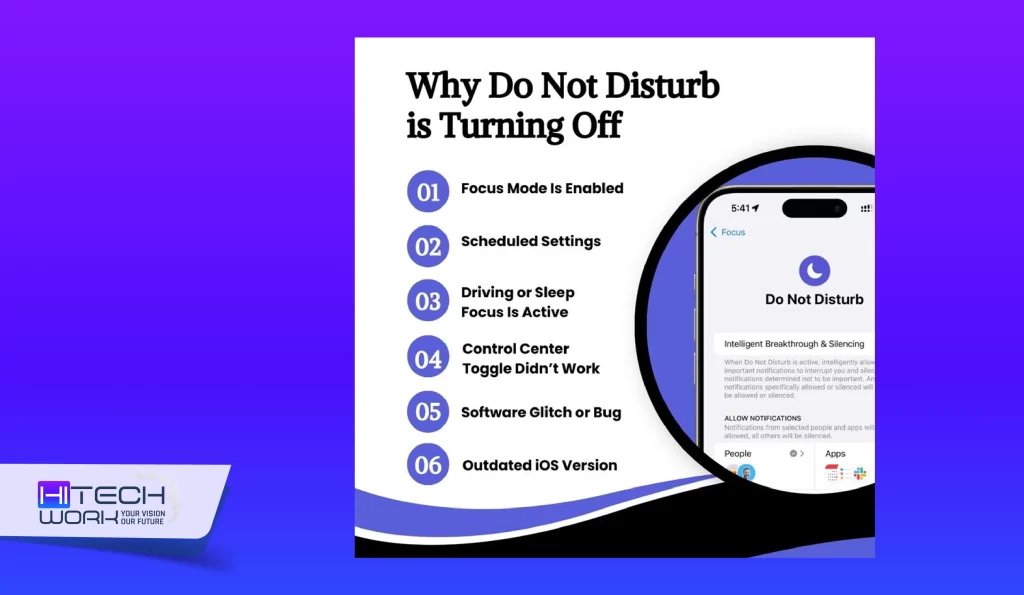
- Focus Mode Is Enabled
- Scheduled setting
- Driving or Sleep Focus Is Active
- Control Center Toggle Didn’t Work
- Software Glitch or Bug
- Outdated iOS Version
Fixes: If You Can’t Turn Off the DND Mode on Your iPhone
There are lots of things you can try if you can’t turn off Do Not Disturb on iPhone.
Turn Off the Scheduled DND Mode
If you have scheduled DND mode, your iPhone will automatically activate the mode at the scheduled times. If you do not wish that to occur, toggle off the scheduled DND Mode.
Go to the Settings app on your iPhone and click on the Do Not Disturb option. Move down to “set a schedule.” Although DND can be prompted by a schedule, your physical location, or when you are using a specific app., choose the scheduled time, then turn off the Scheduled option.
Check Driving or Sleep Modes
Sometimes, Driving Focus or Sleep Focus keeps Do Not Disturb on iPhone active. To check it, go to Settings > Focus and make sure sleep and driving mode are not enabled.
Restart Your iPhone
Sometimes, simply restarting the iPhone can fix minor glitches that may cause issues. So, hold the side option and the Volume Up button until the power off slider appears. Then, slide your finger over the screen to power off the device. When your phone is turned off, hold the side button to turn it on again.
Check Software Update
Out-of-date software can sometimes create issues like this. Launch the Settings App and click on General to check for a software update. And check if the latest iOS update is available.
If the latest update is available, tap on Download to install it.
Force Restart iPhone
If a simple restart does not fix the problem, you may need to force restart your device. This differs from a simple restart and is usually effective in fixing software issues.
Contact Apple Support
If you have implemented all the possible steps and are still encountering the issue, it may appear to be due to software issues. So, in this case, you must contact Apple Support for further assistance.
How to Turn Off Sleep Mode on iPhone
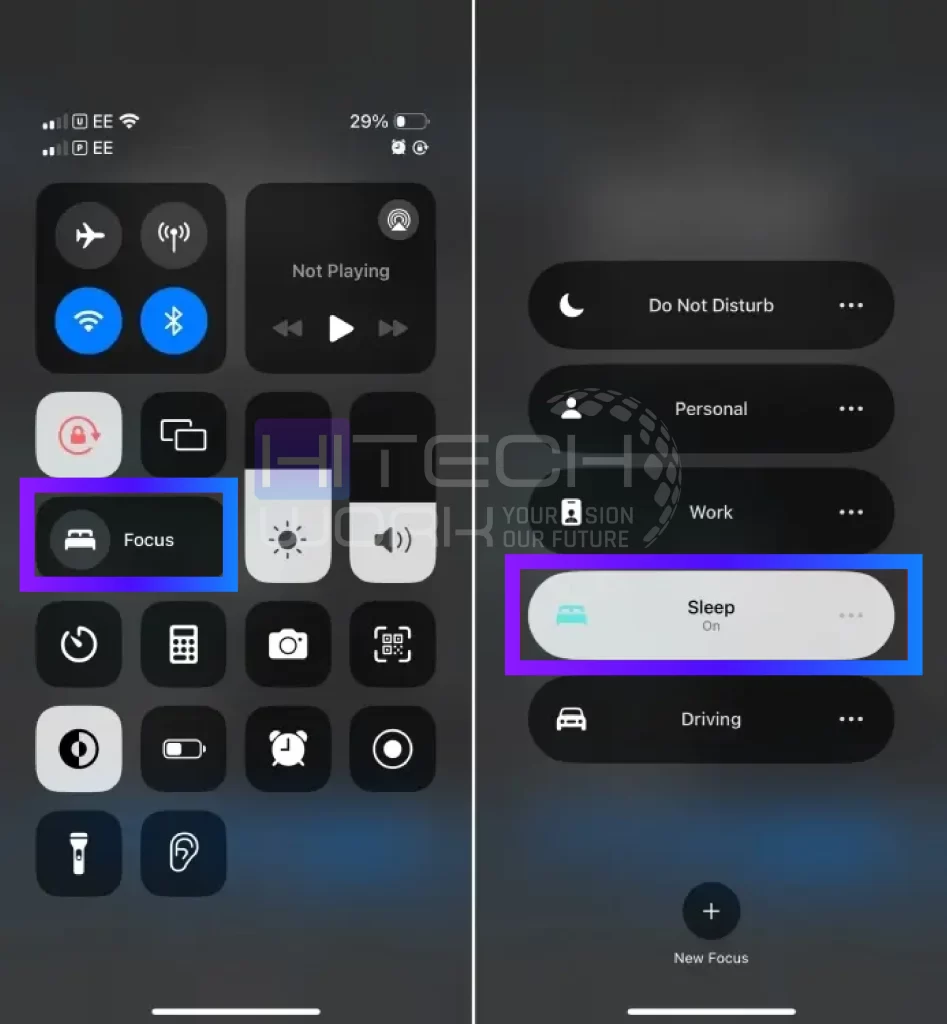
It’s a kind of DND feature but with little variation. Once you set the sleep mode according to your sleep routine, you can also turn it off manually from the control center by following the steps below.
- First, access the Control center.
- Second, choose Sleep (the bed icon) to turn off sleep mode.
- If it shows a list of focus modes, choose the active mode to disallow all of them.
Manage DND with Intelligent Breakthrough & Silencing Settings in iOS 18
In iOS 18, you can use the Apple AI Focus settings Intelligent Breakthrough feature. The Intelligent Breakthrough recognizes the content of your notifications and alerts. When this feature is enabled, your important notifications will interrupt you; however, it silences the unimportant notifications. Also, any notifications that you specifically turn on or silence will still be turned on or silenced.
Here are the steps to turn on the Intelligent Breakthrough on iPhone AI:
- Head to the settings app and tap on focus.
- Now select the focus setting you want to check for Intelligent Breakthrough.
- Then turn on or off the Intelligence Breakthrough toggle.
FAQ’s
Where is do not disturb on iPhone?
On iPhone, you can see Do Not Disturb under Settings > Focus > Do Not Disturb. On older iPhones (iOS 14 or earlier), you’ll see Do Not Disturb directly in Settings.
How to turn off Do Not Disturb on iPhone with Apple Watch?
- Tap on your watch screen to wake it up.
- Swipe up from the bottom of the watch face to open the Control Center.
- Look for the crescent moon icon (Do Not Disturb / Focus).
- If it is turned on, tap it to turn it off.
How does the bedtime option work?
With this feature, your lock screen gets dimmed, calls & alerts are quiet, and notifications fall in the Notification Center only. When the scheduled time ends, all the settings return to normal.
Can I receive phone calls while DND mode is enabled?
You can still get your phone calls while Do Not Disturb is enabled. Although all incoming calls will go directly to voicemail, you will not get any notification.
What is iPhone silent mode vs do not disturb?
iPhone’s silent mode mutes the ringtones and alerts, but calls and notifications still show on the screen and may vibrate while alarms still sound. However, do not disturb mode silences calls, texts, and notifications completely (no sounds, vibrations, or screen lighting), unless you allow exceptions.
What’s the difference between Focus and Do Not Disturb?
Do Not Disturb is a Focus mode that silences all calls and notifications. However, Focus is a broader feature that includes Do Not Disturb plus other customizable modes (like Sleep, Work, Driving) with more control over who and what can notify you.